
Real-Viewport Screenshots & Blind Subagent Visual Review for AI UI
An agent reading its own JSX and Tailwind classes will happily report that a screen looks "clean and balanced" while the actual browser rendering suffers from three-line headline wraps, unreadable gray-on-dark labels and a lopsided grid. Oil UI treats live browser rendering and context-free subagent critique as mandatory steps before any interface is considered finished.
Key takeaways
- Source code is not the interface: judge layouts exclusively from real browser pixels rendered at target viewports (1440×900, 390×844, 1920×720).
- The agent that wrote the code is biased toward its own intentions; spawning a fresh subagent that sees only the screenshots produces honest critique.
- Inspect three views: 100% full-page captures for pacing, 200% crops for alignment and border discipline, and text-blurred images for block weight.
- Screenshots verify static craft, while clicking and typing through the live page confirms that states, drawers and error recovery actually work.
npx skills add oil-oil/oil-uiRequires an image-capable model and a local browser environment that can render and capture pages.
Why Source-Code Inspection Misses Visual Defects
In source code, a flex row with justify-between looks tidy. In a real 390px viewport with a 32-character product title and three action buttons, that same row crushes the buttons into tall, unreadable pills. Similarly, color classes in code do not reveal when secondary text disappears against a dark background.
Many of the sharpest details in the Oil UI gallery depend on exact viewport behavior: in Yantu (car infotainment at 1920×720), approaching a turn enlarges navigation guidance and dims media controls; in Splitwater (swim watch at 198×242, DPR=4), a single giant numeral owns the wet screen; in Forkside (chess lessons), making the right knight move lights up two simultaneous fork attack lines. Only live rendering confirms those states hold up.
| Inspection layer | How it works | What defects it catches |
|---|---|---|
| 100% viewport capture | Full-bleed and full-scroll screenshots at 1440×900 (desktop) or 390×844 (mobile) | Buried primary actions, monotonous section heights, broken scroll pacing and clipped footers |
| 200% detail crops | 2× zoomed crops of headers, table rows, form inputs and pricing tiers | Double borders, misaligned numeric columns, inconsistent padding and low-contrast captions |
| Blurred block-structure check | Text blurred or downscaled so only spatial masses and color accents remain visible | Top-heavy or lopsided layouts, competing accent colors and uniform grids of identical boxes |
| Live interactive walkthrough | Clicking, typing, dragging sliders and triggering error states in the browser | Dead buttons, popovers covering critical context, broken validation recovery and desynced state |
How Context-Free Subagent Blind Review Works
Ask the authoring agent to critique its own screenshot and it will usually rationalize its mistakes because it remembers the prompt it was trying to satisfy.
Oil UI breaks that confirmation bias by spawning a separate subagent that receives zero source code and zero implementation history—only the rendered PNG screenshots and a one-line statement of what the product is. Acting like a demanding first-time user, the blind reviewer flags cramped spacing, leftover AI clichés and weak contrast.
Capture deterministic screenshots of every required state
The main agent opens the running page in a headless browser and captures the default view, active interaction states and mobile breakpoints.
Hand the images to a fresh subagent with no code context
The reviewer inspects the captures against Oil UI’s readability, hierarchy and anti-slop criteria and returns a concrete list of visual defects.
Fix defects, subtract clutter and re-capture
The main agent resolves each reported issue in code and takes a fresh screenshot to verify the fix before completing the task.
Prompt Template to Trigger a Blind Screenshot Review
Whenever a draft screen works functionally but still feels slightly off, run this review pass:
Run an Oil UI visual verification and blind subagent review on the current screen:
1. Open the live page in a local browser and capture screenshots at 1440×900 (desktop) and 390×844 (mobile), covering the default state and [State 1 / State 2].
2. Spawn a fresh subagent with no code context. Pass only the screenshots and product summary, and have it critique: leftover AI template clichés, low-contrast text, cramped padding, misaligned columns and unclear first-screen focus.
3. Fix every issue raised by the blind reviewer and re-capture screenshots to confirm.
Works automatically in agents that support subagents and image inspection, such as Claude Code and Codex.
Working gallery examples & prompts
Open the live demos at 1440px or 390px to inspect how the model and prompt shaped the final interface.
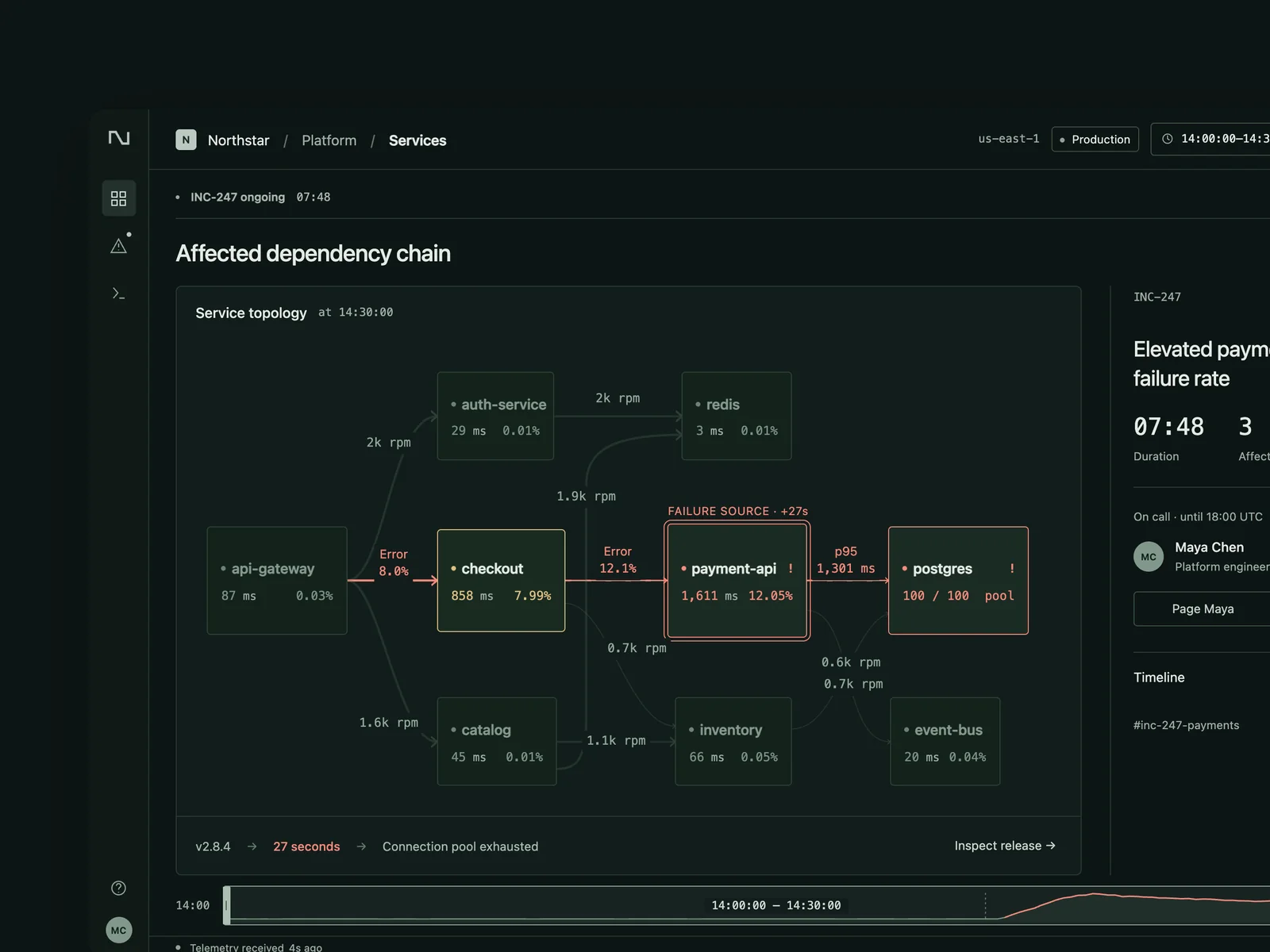
Nightwatch
Operations monitoring and incident response
A monitoring and on-call tool for a medium-sized platform team (1440×900), with an English interface: service topology, latency, error-rate and traffic charts, recent deployments, logs, and traces; during an incident, show alerts, the current on-call person, and an incident timeline. An incident unfolding is the core: the failing service and affected downstream services should be obvious in the topology. Dragging the time range should align charts, deployment markers, and logs so users can see which deployment caused the problem. Design three states: a healthy overview; an incident in progress with an alert and the affected path highlighted in the topology; and logs and traces opened at the error peak to identify the deployment responsible.
Inspect work & prompt →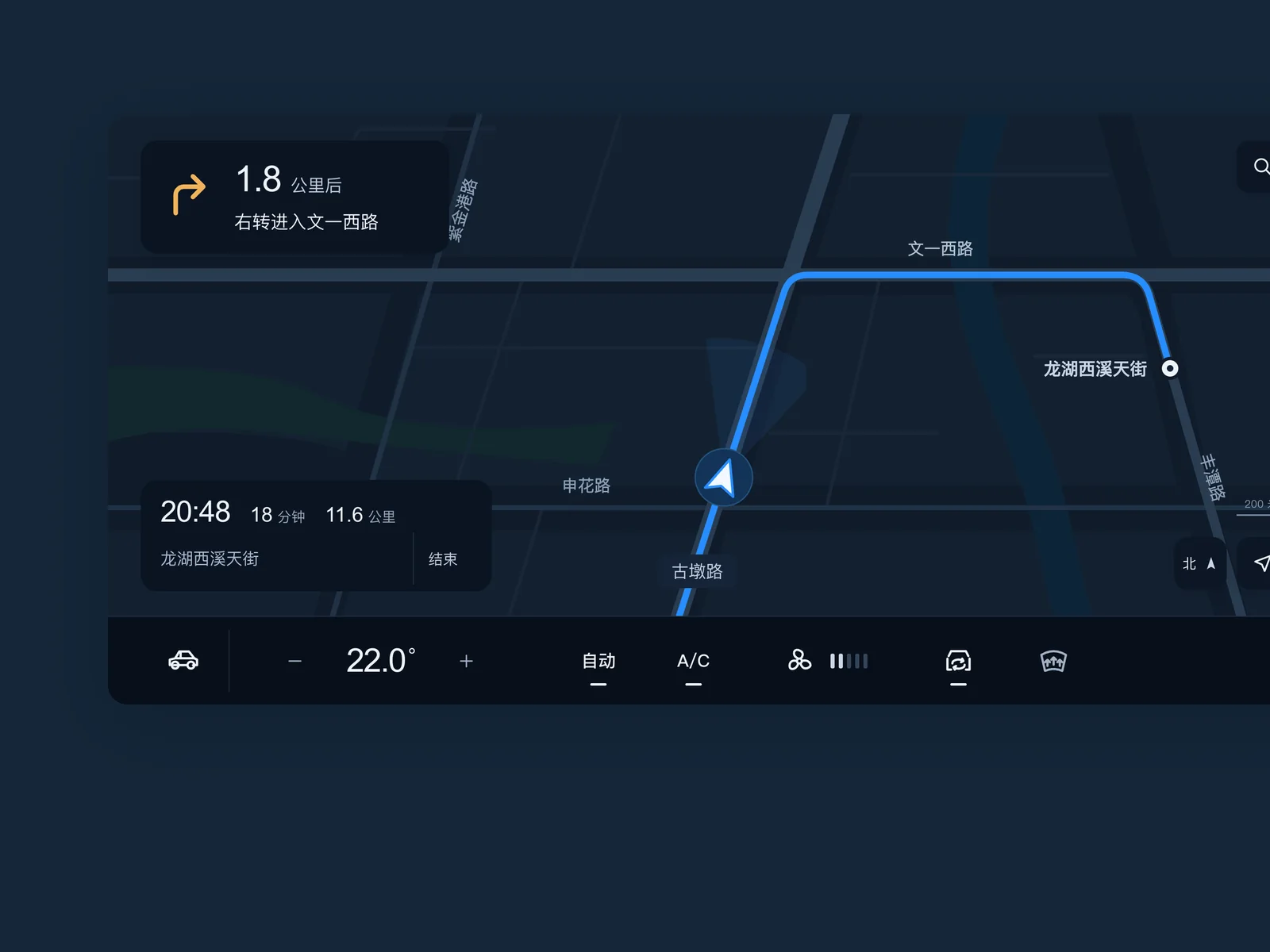
Yantu
In-car infotainment
The main interface of an in-car infotainment screen (1920×720, readable at a glance while driving), with a Chinese interface: a navigation map, currently playing music, climate controls, and common vehicle controls. Shifting priorities on the same screen is the core of this work: normally the map takes the lead while music and climate controls each occupy a small area; as a turn approaches, the turn guidance automatically enlarges and music makes room; when adjusting the climate, a temperature slider rises and everything else dims. Make buttons large enough to press accurately without looking. Draw the map yourself rather than using a real map service. Colors: a nighttime blue-black background and an electric-blue navigation route, with amber reserved for warnings and turn guidance. Do not use warm white or beige. Design three states: cruising, approaching a turn, and adjusting the climate. Capture screenshots at 1920×720, DPR=1.
Inspect work & prompt →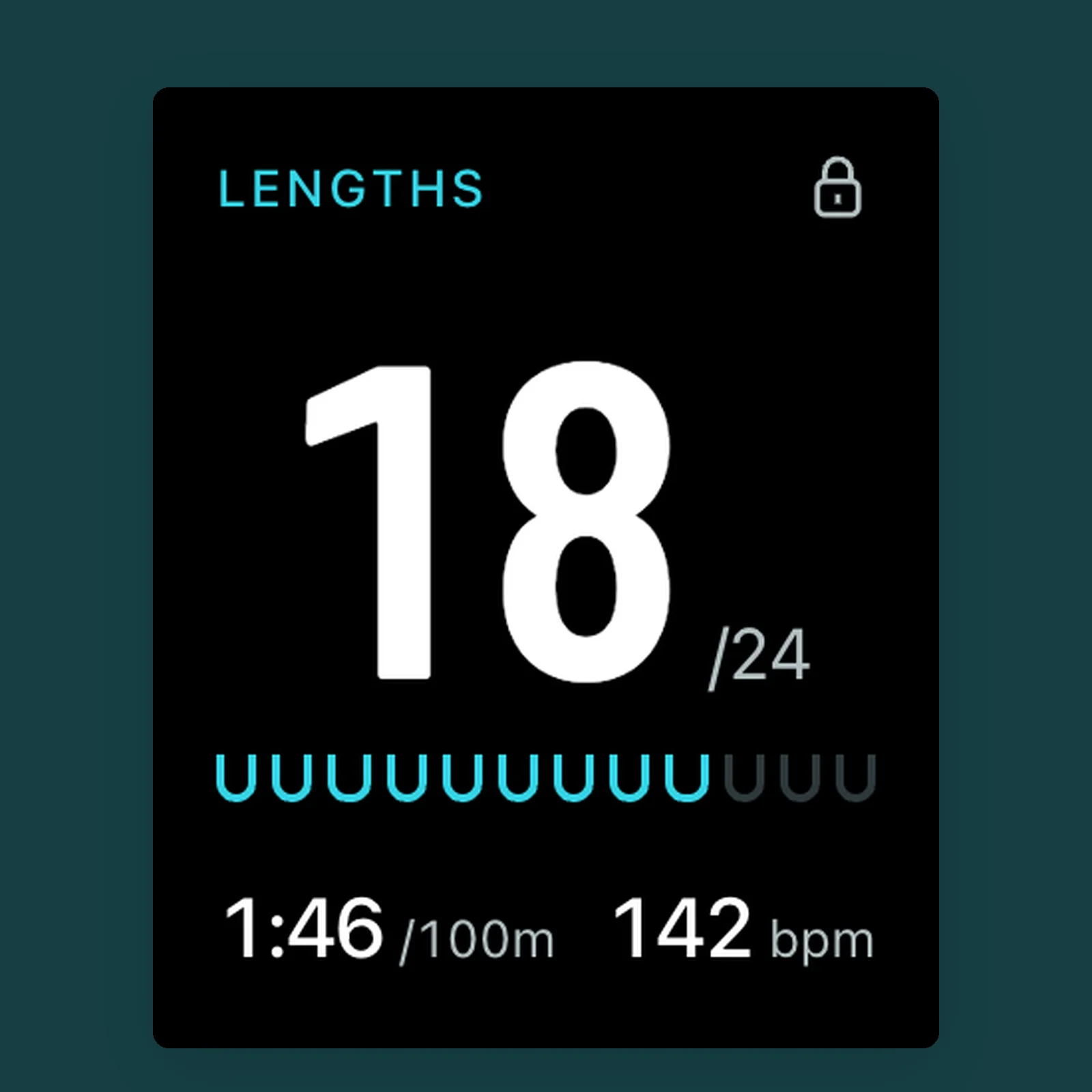
Splitwater
Swimming workout watch app
A watch app for recording pool workouts (design each screen at 198×242 without drawing a watch case or strap), with an English interface: lengths, pace, heart rate, a rest countdown, and a post-swim summary. One glance at the wrist should be enough: each screen has one large number as its main subject; the length count jumps briefly after each completed length; during rest, a countdown ring completes and a vibration signals that it is time to get back in the water. The screen gets wet, so use rotation of the crown to unlock it and show the corresponding state in the interface. Colors: a pure-black watch display, pool cyan as the main color, and white numbers. Do not use warm colors. Design five screens: swimming, rest countdown, water lock, pause and end, and workout summary. Deliver `index.html` with one interactive screen and `screens.html` with all five screens side by side. Capture screenshots at 198×242, DPR=4.
Inspect work & prompt →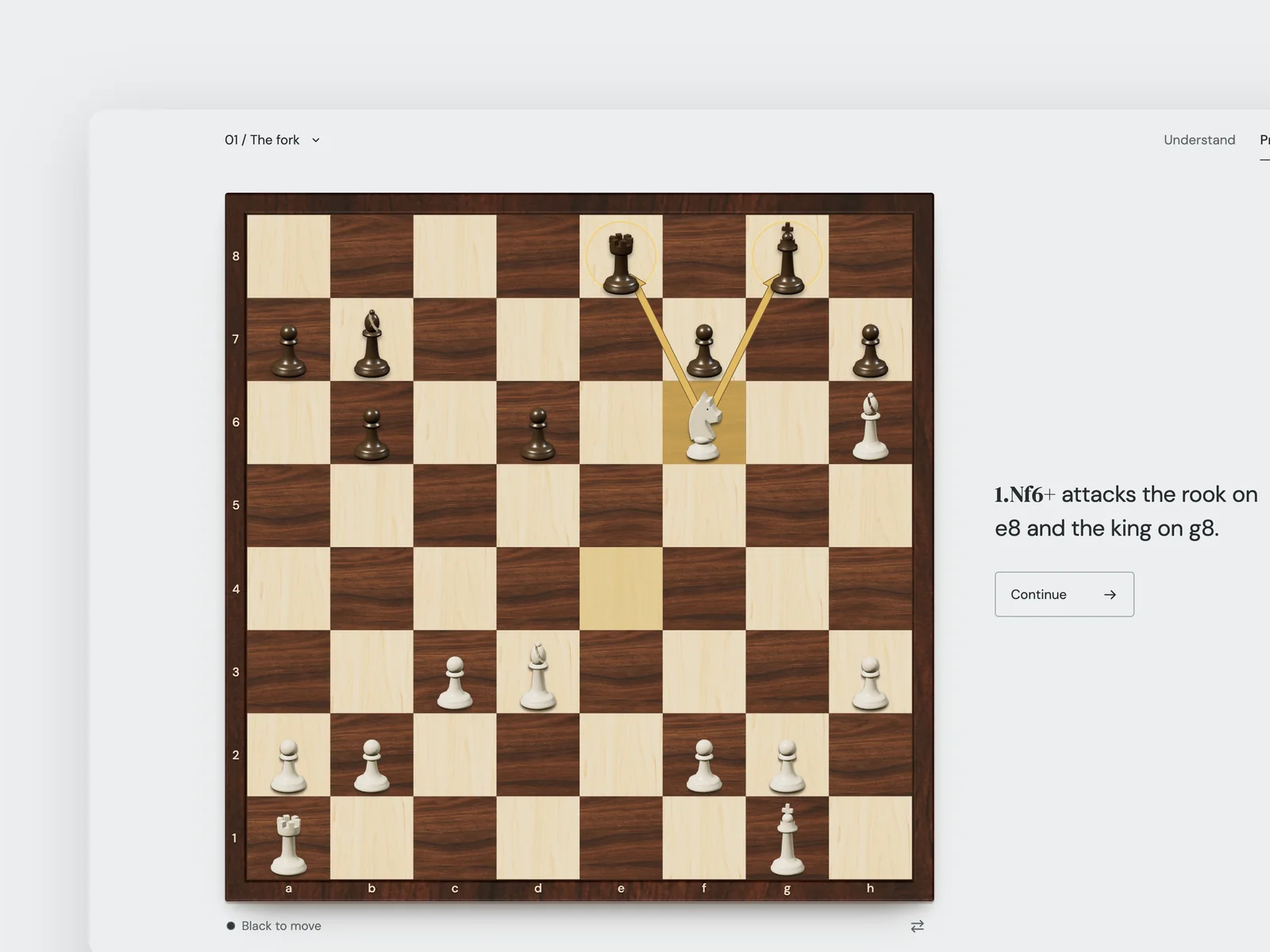
Forkside
Chess tactics lessons
A chess tactics learning website (starting at 1440×900, responsive down to 390 pixels wide), with an English interface, for amateur players rated 800–1600. Teach one tactic at a time, such as forks, pins, skewers, and discovered attacks, with step-by-step board explanations followed by a few puzzles. The core is arrows and highlights appearing on the board step by step with the explanation. When a correct move is made, such as a knight jumping to a fork square, two attack lines light up simultaneously. An incorrect move should show the opponent's specific response rather than merely saying “wrong.” Make the pieces and board refined, with materials created through image generation or 3D rendering rather than default piece icons. Design three states: a lesson explanation; solving a puzzle; and the tactic revealed after solving it.
Inspect work & prompt →Oil UI Pro: Up to 3 rounds of blind review targeting 9/10 quality
While the free skill includes a single blind review pass, Oil UI Pro runs up to three iterative rounds of blind subagent critique aiming for 9/10 quality, paired with 100%/200% zoom checklists, text-masked block checks and click-counted browser walkthroughs.
npx github:oil-oil/oil-cli install oil-ui-proCommon questions
What happens if my agent environment cannot open a browser or inspect images?
Oil UI’s brief framing, category guidance and anti-slop rules still help during code generation, but without a real browser and image inspection the agent cannot see rendered pixels or run blind visual reviews. For best results, pair Oil UI with Playwright or local browser tooling.
Why inspect 200% zoomed crops in addition to full-page screenshots?
Full-page screenshots compress dense tables and form controls enough to hide 1px misalignments, colliding borders and muddy secondary text. Cropping key controls at 200% makes micro-typography and spacing errors unmistakable.
What does blurring or masking text reveal during a review?
When you can no longer read the words, you stop forgiving a weak layout because the copy sounds smart. Blurred block views immediately expose whether the primary action stands out and whether visual weight is balanced across the canvas.
How many rounds of blind review does a typical screen need?
One to two rounds catch the vast majority of spacing, contrast and cliché issues on everyday screens. For flagship landing pages or complex workspaces, Oil UI Pro’s three-round loop pushes craft noticeably further.