
DeepSeek Harness UI Design Guide: Native dsh-oil-ui Plugin & Examples
If you build interfaces with DeepSeek Harness, you can install the native dsh-oil-ui plugin in a single command. It bundles the open-source Oil UI workflow out of the box and automatically detects a local Oil UI Pro installation when present. The gallery also includes side-by-side specimens built with DeepSeek 4.1 Flash from the exact same briefs used for GPT models.
Key takeaways
- Run dsh plugin --profile web add github:oil-oil/dsh-oil-ui to enable Oil UI natively inside DeepSeek Harness.
- dsh-oil-ui includes the free skill and automatically upgrades its workflow when it detects Oil UI Pro installed on your machine.
- Compare DeepSeek 4.1 Flash works directly against GPT-5.4 and GPT-6.1 Sol works built from identical briefs (Vesper, Atelier Volders, Fonderie Mercier and Sonar).
- Giving fast models concrete domain rules, real numbers and explicit state lists noticeably improves first-pass layout stability.
dsh plugin --profile web add github:oil-oil/dsh-oil-uiPlugin repository: https://github.com/oil-oil/dsh-oil-ui (bundles the free skill and auto-detects local Oil UI Pro).
Installing dsh-oil-ui and Connecting Oil UI Pro
DeepSeek Harness uses profile-based plugins. The native dsh-oil-ui package attaches directly to your web profile so you do not have to copy skill files manually across projects.
Add dsh-oil-ui to your DeepSeek Harness web profile
Run the plugin command in your terminal. DeepSeek Harness fetches the repository and activates the open-source Oil UI workflow immediately.
dsh plugin --profile web add github:oil-oil/dsh-oil-ui(Optional) Install Oil UI Pro locally for automatic detection
When you install Oil UI Pro via oil-cli on the same machine, dsh-oil-ui detects the local Pro installation automatically and unlocks the full Pro method without extra plugin flags.
npx github:oil-oil/oil-cli install oil-ui-proStart with a concrete brief and viewport target
Pass your product context, target viewport (1440×900 or 390×844) and three testable states so the agent can compare directions and inspect live screenshots.
Same-Brief Comparisons: DeepSeek 4.1 Flash in the Gallery
A common question from engineering teams is how a fast, cost-efficient model like DeepSeek 4.1 Flash performs with a structured UI skill compared with larger frontier models.
To make the comparison concrete, the gallery includes several pairs where DeepSeek 4.1 Flash and GPT-6.1 Sol or GPT-5.4 were given the exact same task brief (TASK.md). You can open both live demos and inspect how each model handled typography, controls and layout:
| Product brief | DeepSeek 4.1 Flash work | Matching GPT work | What to compare in the live pages |
|---|---|---|---|
| Atelier Volders (Ghent oak stool workshop) | Atelier Volders · The Wedged Oak (volders-wedge) | Grain & Tenon (volders-grain) / River Timber (volders-hearth) | Real-time switching across 3 stool heights (€240–€310) and 3 oak finishes without stock photos |
| Fonderie Mercier (Bronze bell foundry) | Fonderie Mercier · The Tuning Sheet (mercier-bell) | Bronze, with a Voice (mercier-voice) / Eighteen Bells (mercier-pour) | Interactive bell strike auditioning with fundamental and overtone decay curves plus batch reservation |
| Vesper (API usage billing console) | Vesper · Settlement Ledger (vesper-ledger) | Vesper (vesper, GPT 5.4) | 1440×900 billing console with threshold filtering, failed invoice recovery timelines and command palette |
| Sonar (Team messaging for 30–300 people) | Sonar · Signal Room (sonar-desk) | Sonar (chat2, GPT 6.1 Sol) | Three-state desktop messaging workspace: busy channel, open thread and file-drop compose state |
Prompting Tips for Fast Models Like DeepSeek 4.1 Flash
A design skill helps a model organize hierarchy and avoid generic habits, while the model’s own capabilities still shape the ceiling. Three habits help fast models produce cleaner results on the first run:
- Supply real numbers and domain constraints
- Exact figures—such as "24 stools per monthly batch, three heights at 32 cm / 45 cm / 62 cm"—give the model concrete anchors for tables, selectors and badges.
- Name one focal control per screen
- Highlight the single piece of interactive craft that matters most on the page (like the acoustic tuning sheet in Fonderie Mercier or the dot-matrix timeline in Tempo · A Year in Dots).
- Always run the browser screenshot check
- Fast models occasionally miss text wrapping or container overflow at narrower widths. Capturing the rendered page at 1440px and 390px catches those issues in one pass.
Use Oil UI to design and implement the website for [brand name, e.g., a two-person craft workshop] (from 1440×900 desktop down to 390px mobile).
- Product & options: Focus on a single flagship object with [3 size options and exact prices] and [3 finish options]. Visitors can switch size and finish in real time and see specifications and pricing update.
- Required sections: Interactive configurator, making process timeline, batch stamp details and current-batch reservation form.
- Deliverable: Rely on typography, layout and custom SVG/canvas illustration rather than stock photos. Verify both configurator state changes and mobile layout in the browser.
Run this in DeepSeek Harness after adding the dsh-oil-ui plugin.
Working gallery examples & prompts
Open the live demos at 1440px or 390px to inspect how the model and prompt shaped the final interface.
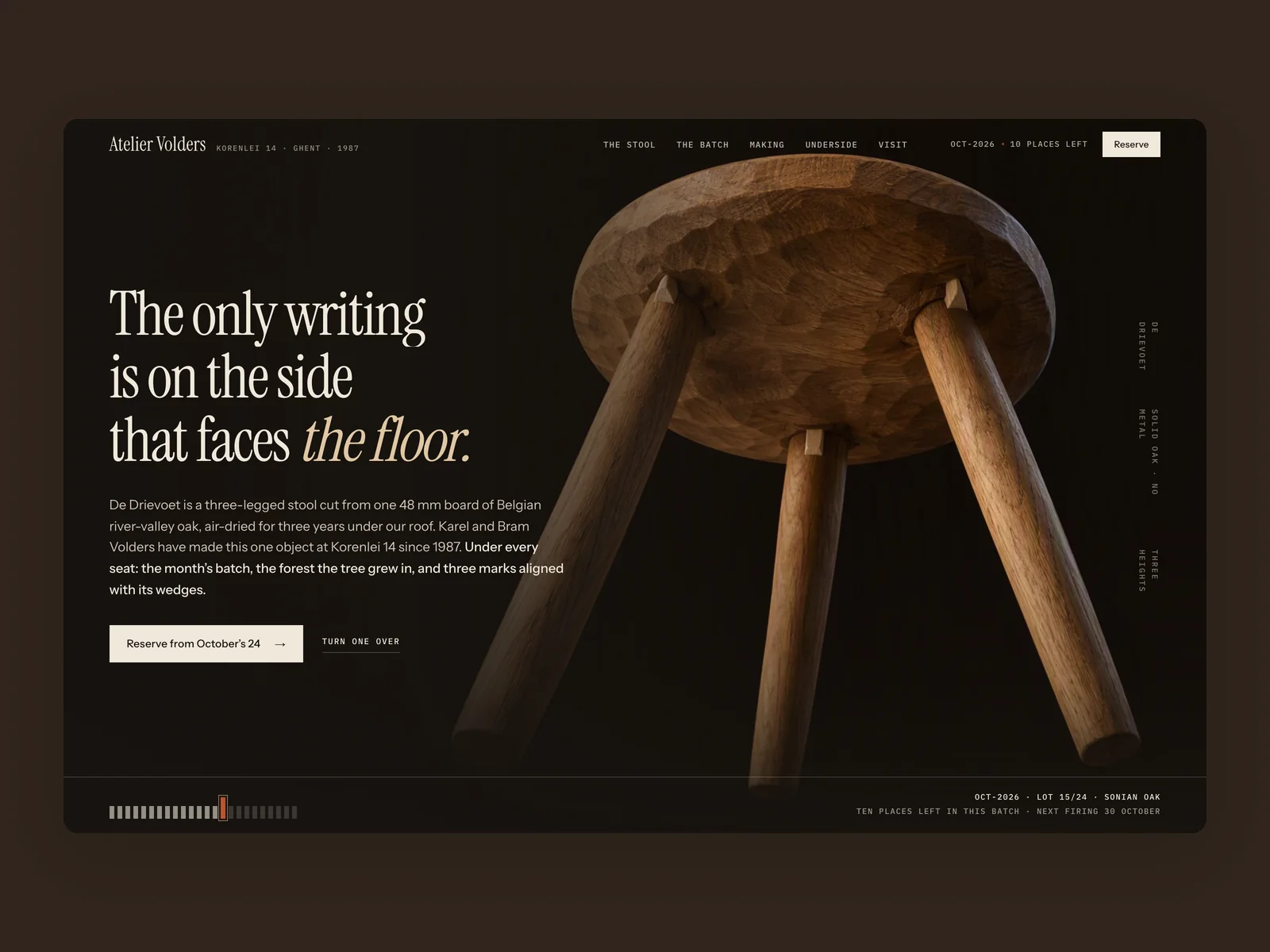
Atelier Volders · The Wedged Oak
Handcrafted furniture workshop website
The website of Atelier Volders, a two-person woodworking workshop at Korenlei 14 in Ghent, Belgium (from 1440×900, responsive down to 390 wide), with an English interface. They make only one object: De Drievoet, a three-legged solid oak stool turned and wedged by hand from timber air-dried for three years, produced in a single monthly batch of 24 stools. It comes in three heights (32 cm low hearth stool €240, 45 cm dining & desk stool €270, 62 cm counter stool with ash foot-ring €310) and three finishes (soap-scrubbed raw oak, fumed dark oak, boiled linseed oil & beeswax). Visitors can switch height and finish in real time, explore the six-week making process, underside hot-iron batch stamp and Saturday open hours, and reserve a stool from the current batch. No product photos are provided.
Inspect work & prompt →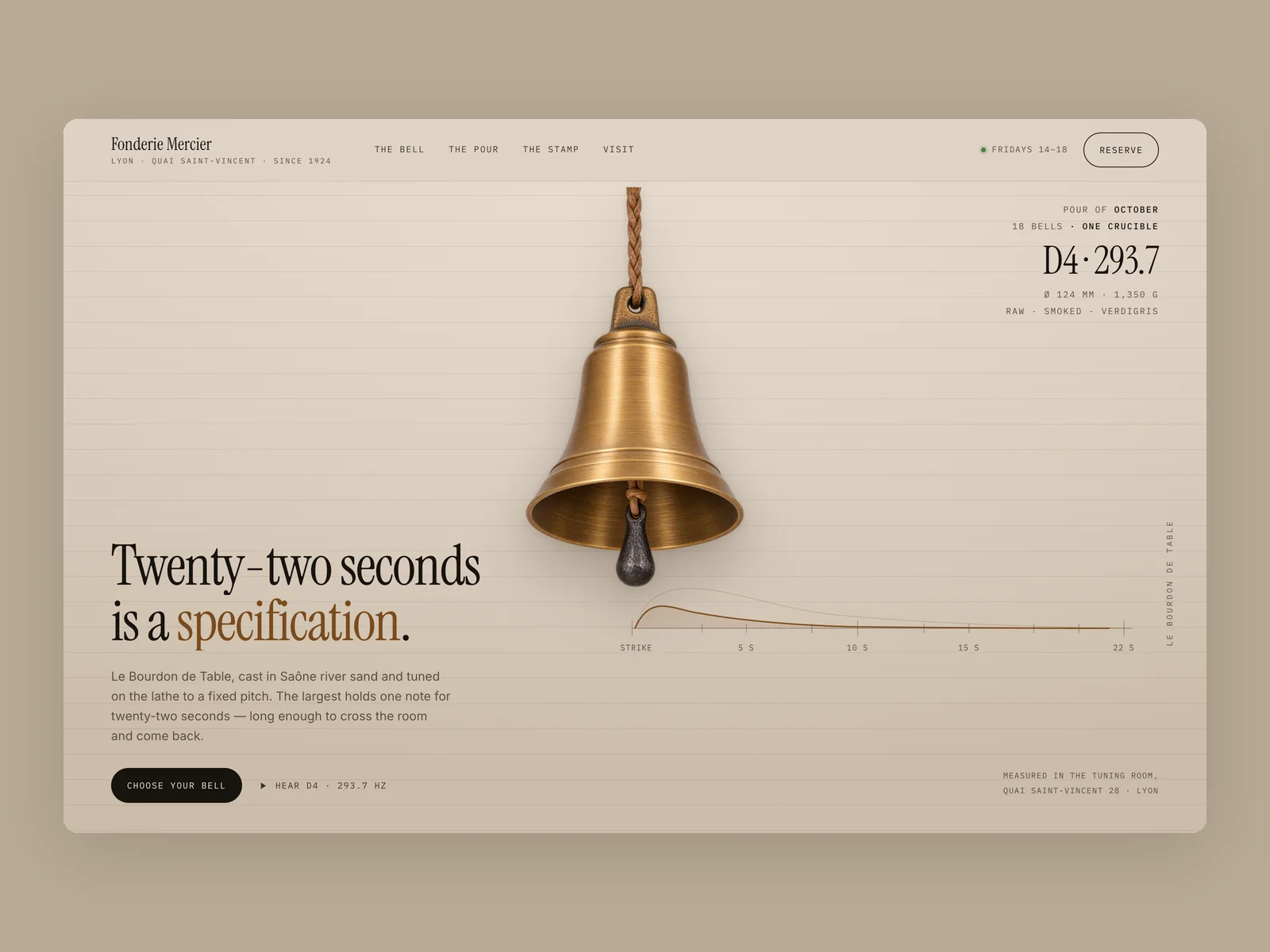
Fonderie Mercier · The Tuning Sheet
Family bronze bell foundry website
The website of Fonderie Mercier, a third-generation family bell foundry at Quai Saint-Vincent 28 on the Saône river quay in Lyon (from 1440×900, responsive down to 390 wide), with an English interface. They cast a single signature object in 78% copper / 22% tin bell bronze using rammed river-sand moulds: Le Bourdon de Table, lathe-tuned to a precise musical pitch and poured once a month in a fixed lot of 18 bells. It comes in three sizes and pitches (Ø 72 mm desk bell A4 440Hz €180, Ø 96 mm courtyard bell F#4 370Hz €240, Ø 124 mm wall bell with forged iron bracket D4 293.7Hz €340) and three patinas (raw lathe-turned bronze, smoked bronze, verdigris). Visitors can listen to each pitch, switch size and patina, explore the five-stage pouring process, cold-stamped crown record and Friday open hours, and prepare a reservation slip for the next monthly pour. No product photos are provided.
Inspect work & prompt →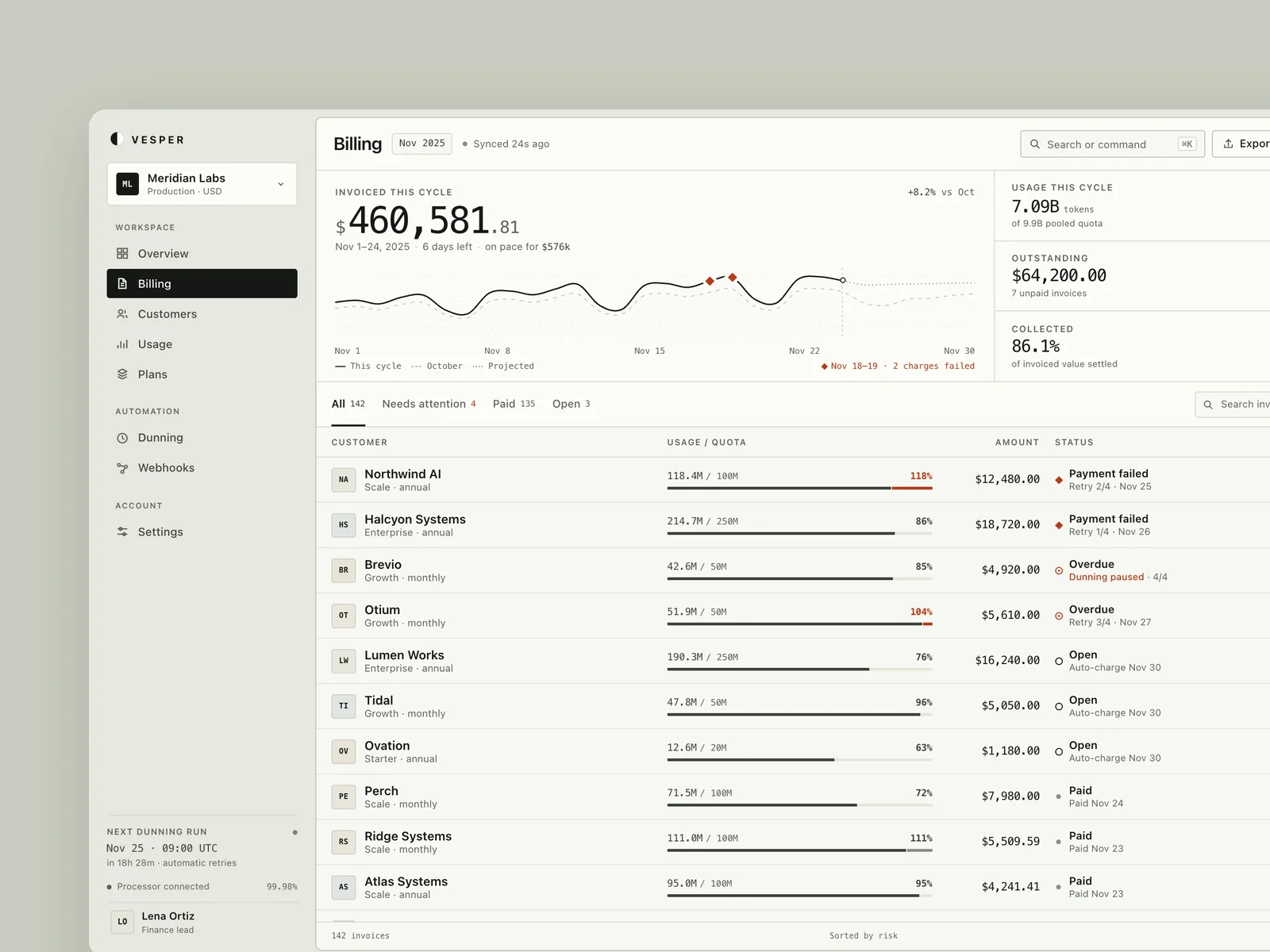
Vesper · Settlement Ledger
API usage billing console
Design an API usage billing and customer invoice console for AI and developer tool teams, with an English interface at a desktop viewport of 1440×900. Users can manage subscription plans and live API usage, review amounts due and invoice exceptions for the current cycle, filter customers or invoices by status and usage threshold, and open a record to inspect line items, payment and Webhook timelines, and event payloads. Include payment retries, quota adjustments, and invoice exports. Implement three key states: the everyday workspace with revenue and usage trends, customer or invoice lists, and live filtering; an exception invoice detail view with a usage breakdown, status timeline, and recovery actions; and a quick command palette. Deliver an offline-ready `index.html` and capture `shots/desktop.png`, `shots/state-1.png`, and `shots/state-2.png` at 1440×900, DPR=2.
Inspect work & prompt →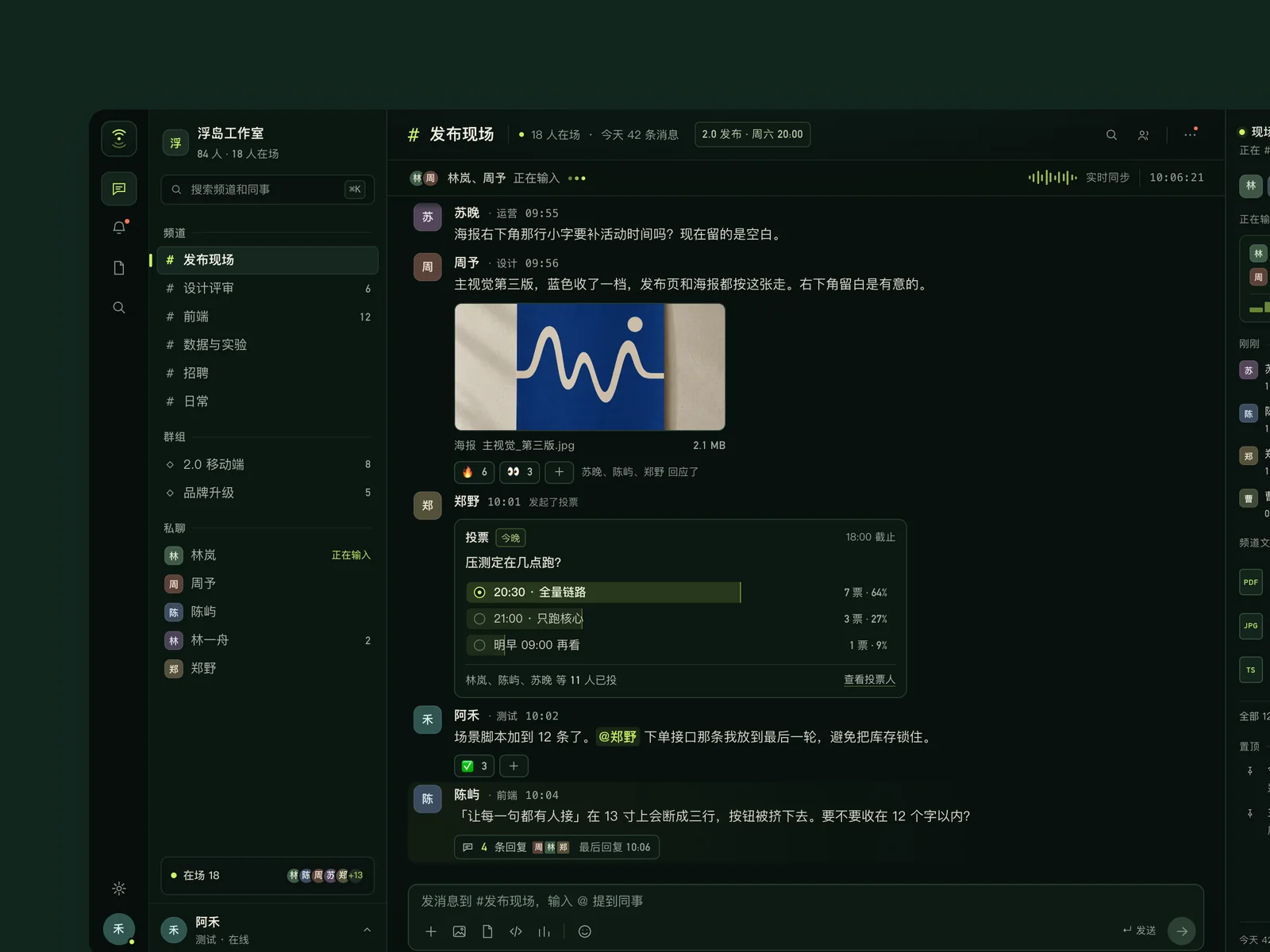
Sonar · Signal Room
Team messaging
A desktop messaging app for companies with 30–300 people (1440×900): channels, groups, and direct messages on the left, and the ongoing conversation in the middle. Messages include text, images, files, code snippets, polls, and emoji reactions. Use a Chinese interface. The sense of immediacy is the heart of this piece: sending a message, several colleagues typing at once, opening a thread on one message, and other people's replies and reactions appearing in real time should all feel smooth and have weight. Do not turn it into an email client or a task board. Design three states: everyday conversation in a busy channel; a thread opened on one message; mentioning a colleague in the input box and dropping in a file, ready to send.
Inspect work & prompt →Automatic Oil UI Pro detection in dsh-oil-ui
If you already use dsh-oil-ui in DeepSeek Harness, upgrading to Oil UI Pro requires only running the oil-cli installer below. The plugin automatically detects your local Pro installation and enables existing-project renovation, 10 workspace archetypes and multi-round blind review.
npx github:oil-oil/oil-cli install oil-ui-proCommon questions
What is the difference between dsh-oil-ui and npx skills add oil-oil/oil-ui?
dsh-oil-ui is the native plugin package built specifically for DeepSeek Harness (installed via dsh plugin --profile web add). For Claude Code, Codex, Cursor, Windsurf and other agents, use npx skills add oil-oil/oil-ui.
What kinds of interfaces does DeepSeek 4.1 Flash handle well with Oil UI?
In gallery testing, it performs well on craft and technical product websites (The Wedged Oak, The Tuning Sheet, Archon · The Open Kernel), structured consoles (Vesper · Settlement Ledger, Sonar · Signal Room) and editorial mobile summaries (Tempo · A Year in Dots).
Do I need to uninstall dsh-oil-ui after buying Oil UI Pro?
No. Keep dsh-oil-ui enabled in DeepSeek Harness—it detects your local Oil UI Pro installation automatically and routes requests through Pro.
Where can I read the exact prompts used for the DeepSeek gallery pieces?
Open any work in the gallery and click the prompt toggle in the viewer bar to read the full brief and see which model produced it.