
Designing Dashboards, Admin Consoles & Desktop Workspaces with AI
Ask an AI model for a dashboard and it almost reflexively draws four KPI cards across the top, a spline chart in the middle and a generic table at the bottom. Real operational tools—incident consoles, billing ledgers, laboratory sample managers and video editors—are organized around the primary object people manipulate all day: what they select, how they spot anomalies, and what action they take next.
Key takeaways
- Anchor the screen on the primary domain object (a service topology, an invoice ledger, a 9×9 cryo-box grid or a timeline) instead of decorative KPI summary cards.
- Keep high-density screens calm through column alignment, tabular numerals and spacing rather than wrapping every datum in a bordered box.
- Connect controls so actions have weight: scrubbing a time window aligns logs and traces; selecting a failed row opens recovery actions.
- Oil UI Pro includes 10 specialized workspace archetypes (list-detail, canvas-inspector, timeline, node graph and more) with full-page continuity checks.
npx skills add oil-oil/oil-uiExplore working consoles and desktop tools in /en/inspiration/desktop-app-design/.
From Generic Chart Grids to Object-Driven Workspaces
None of the desktop pieces in the Oil UI gallery rely on a generic four-card analytics template, because each profession works on a distinct object:
In Nightwatch (ops), the workspace revolves around live service topology and a draggable incident time window that aligns latency charts, deployment markers and error traces. In Vesper, the core object is the customer invoice lifecycle, pairing threshold filters with an exception drawer for webhook inspection and payment retries. In GridStore (lims), researchers interact directly with a visual 9×9 freezer box rack to locate, transfer and audit biological specimens.
| Gallery work | Domain | Primary workspace object | Linked states & actions |
|---|---|---|---|
| Nightwatch (ops) | Incident response & on-call | Service topology + synchronized time scrubber | Healthy overview, active incident path highlight, log peak investigation and release attribution |
| Vesper (vesper) | API usage billing console | Customer invoice table + event timeline drawer | Threshold filtering, failed invoice breakdown with retry/quota actions, and command palette |
| Runrate (revenue) | SaaS revenue & retention | MRR movement ledger (new, expansion, churn) + cohort matrix | Time-granularity switching linked to NRR breakdown and account drill-down |
| GridStore (lims) | Lab sample management | Freezer hierarchy + 9×9 cryobox well grid | Direct well selection, chain-of-custody drawer, batch transfer and temperature alert state |
Four Rules for Keeping Dense Interfaces Calm
Enterprise and developer tools pack dozens of data points into a 1440×900 viewport. If every badge glows and every cell has a heavy border, operators burn out quickly. Oil UI applies four subtraction habits to dense screens:
- Rely on alignment and tabular numerals instead of vertical gridlines
- Right-align numeric columns with tabular-nums, left-align text identifiers, and drop unnecessary vertical borders so the eye can scan rows effortlessly.
- Reserve saturated color for actionable exceptions
- If fifty "Healthy" rows wear bright green pills, the one failing payment or degraded service disappears. Keep normal states quiet and save amber or red for items requiring intervention.
- Move secondary payloads into an inspector drawer
- Keep the primary list focused on the 5 or 6 columns needed for triage. Clicking a row opens the full webhook payload, audit trail or trace waterfall in a side panel.
- Maintain visual craft from the top bar down to modals
- AI drafts often polish the top header and neglect tables, empty states and dialogs below. Keep typography, border weight and spacing consistent across every layer.
Prompt Template for Dashboards and Desktop Tools
Tell your coding agent which object owns the center of the screen and which three operational states must be verifiable:
Use Oil UI to design and implement [tool name, e.g., a laboratory sample management console / logistics dispatch workspace] at a 1440×900 desktop viewport.
- Primary workspace object: [Do not build a generic 4-card KPI dashboard; center the workspace directly on the 9×9 sample grid / exception shipment table / topology map].
- Layout & density: Use a [left navigation rail + central workspace + right inspector drawer] structure. Format all numbers with tabular-nums and reserve saturated accent colors strictly for warnings and active selections.
- States to deliver: Implement 1) everyday triage and live filtering, 2) selected exception inspection with recovery actions, and 3) batch action or quick command palette. Capture 1440×900 browser screenshots for all three states.
Explicitly ruling out a generic 4-card KPI header steers the agent straight toward a real workspace.
Working gallery examples & prompts
Open the live demos at 1440px or 390px to inspect how the model and prompt shaped the final interface.
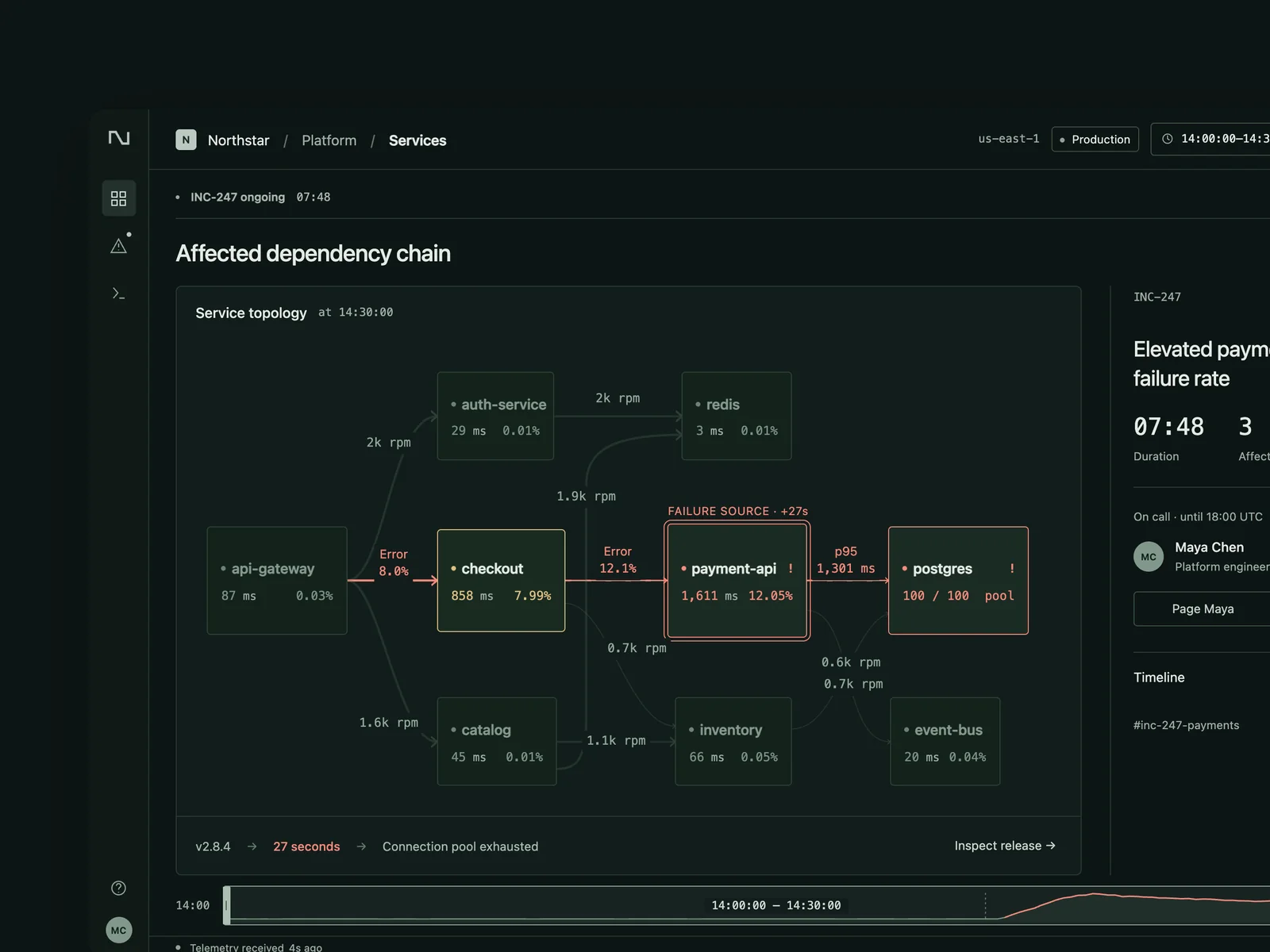
Nightwatch
Operations monitoring and incident response
A monitoring and on-call tool for a medium-sized platform team (1440×900), with an English interface: service topology, latency, error-rate and traffic charts, recent deployments, logs, and traces; during an incident, show alerts, the current on-call person, and an incident timeline. An incident unfolding is the core: the failing service and affected downstream services should be obvious in the topology. Dragging the time range should align charts, deployment markers, and logs so users can see which deployment caused the problem. Design three states: a healthy overview; an incident in progress with an alert and the affected path highlighted in the topology; and logs and traces opened at the error peak to identify the deployment responsible.
Inspect work & prompt →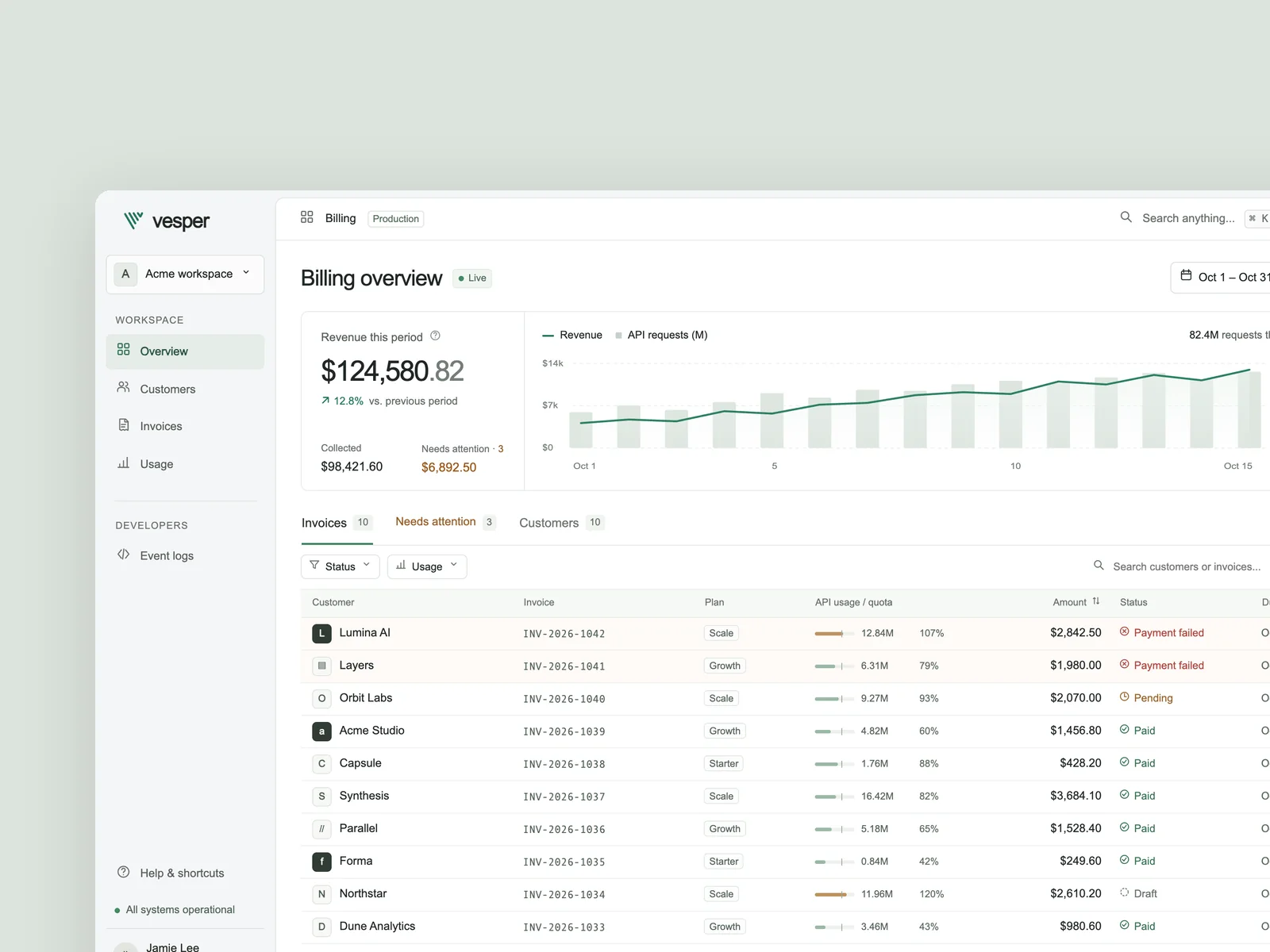
Vesper
API usage billing console
Design an API usage billing and customer invoice console for AI and developer tool teams, with an English interface at a desktop viewport of 1440×900. Users can manage subscription plans and live API usage, review amounts due and invoice exceptions for the current cycle, filter customers or invoices by status and usage threshold, and open a record to inspect line items, payment and Webhook timelines, and event payloads. Include payment retries, quota adjustments, and invoice exports. Implement three key states: the everyday workspace with revenue and usage trends, customer or invoice lists, and live filtering; an exception invoice detail view with a usage breakdown, status timeline, and recovery actions; and a quick command palette. Deliver an offline-ready `index.html` and capture `shots/desktop.png`, `shots/state-1.png`, and `shots/state-2.png` at 1440×900, DPR=2.
Inspect work & prompt →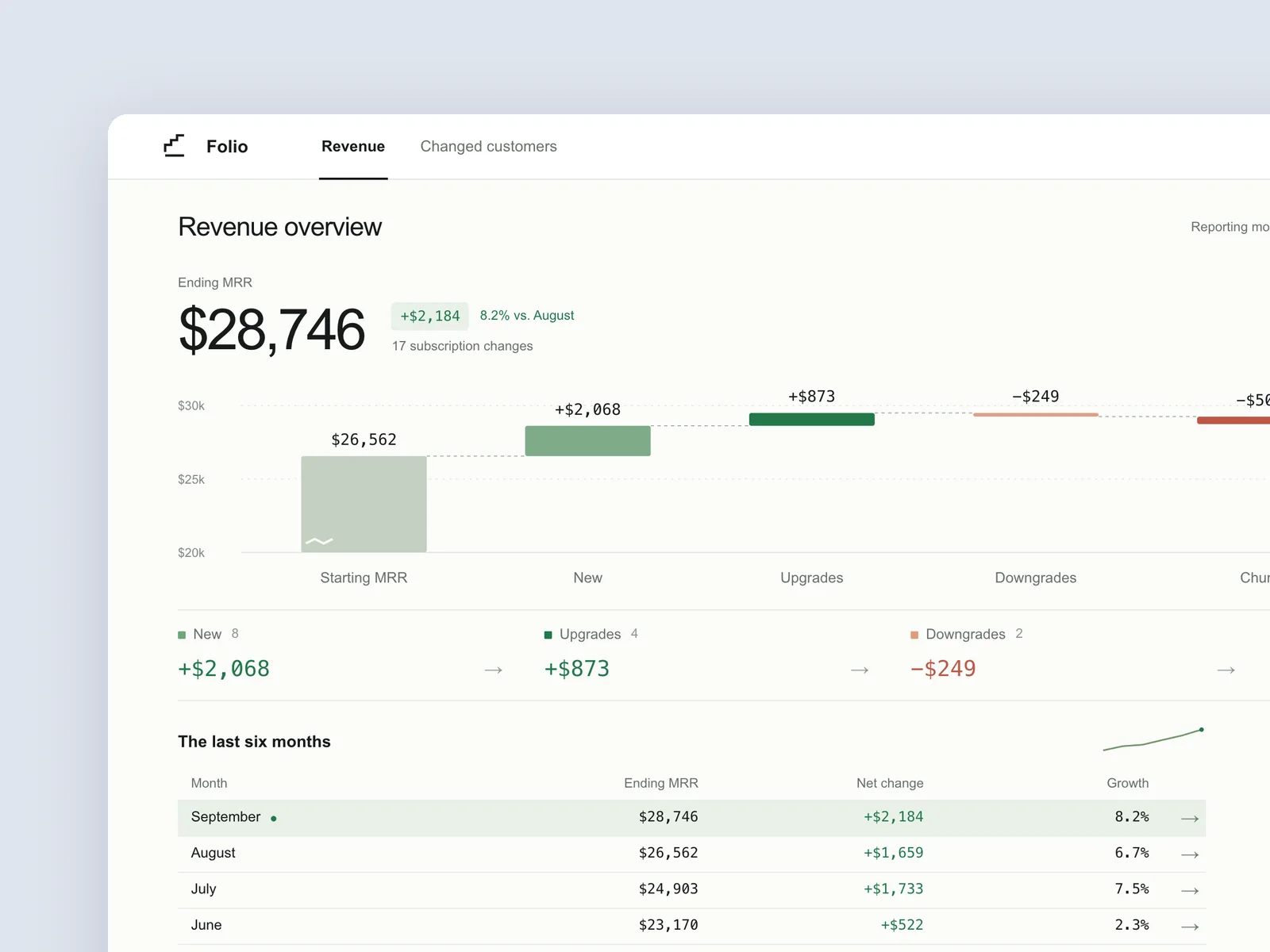
Runrate
SaaS revenue dashboard
A desktop app for indie developers and small teams to watch their subscription revenue (1440×900): MRR, new, expansion, contraction, churn and net revenue retention, with monthly trends. Open a month to see which customers drove the change, and open a customer to see their subscription history. The home screen should first answer "how did the money change this month", rather than piling up metric cards. Design the overview, a month expanded into its changes, and a single customer's detail.
Inspect work & prompt →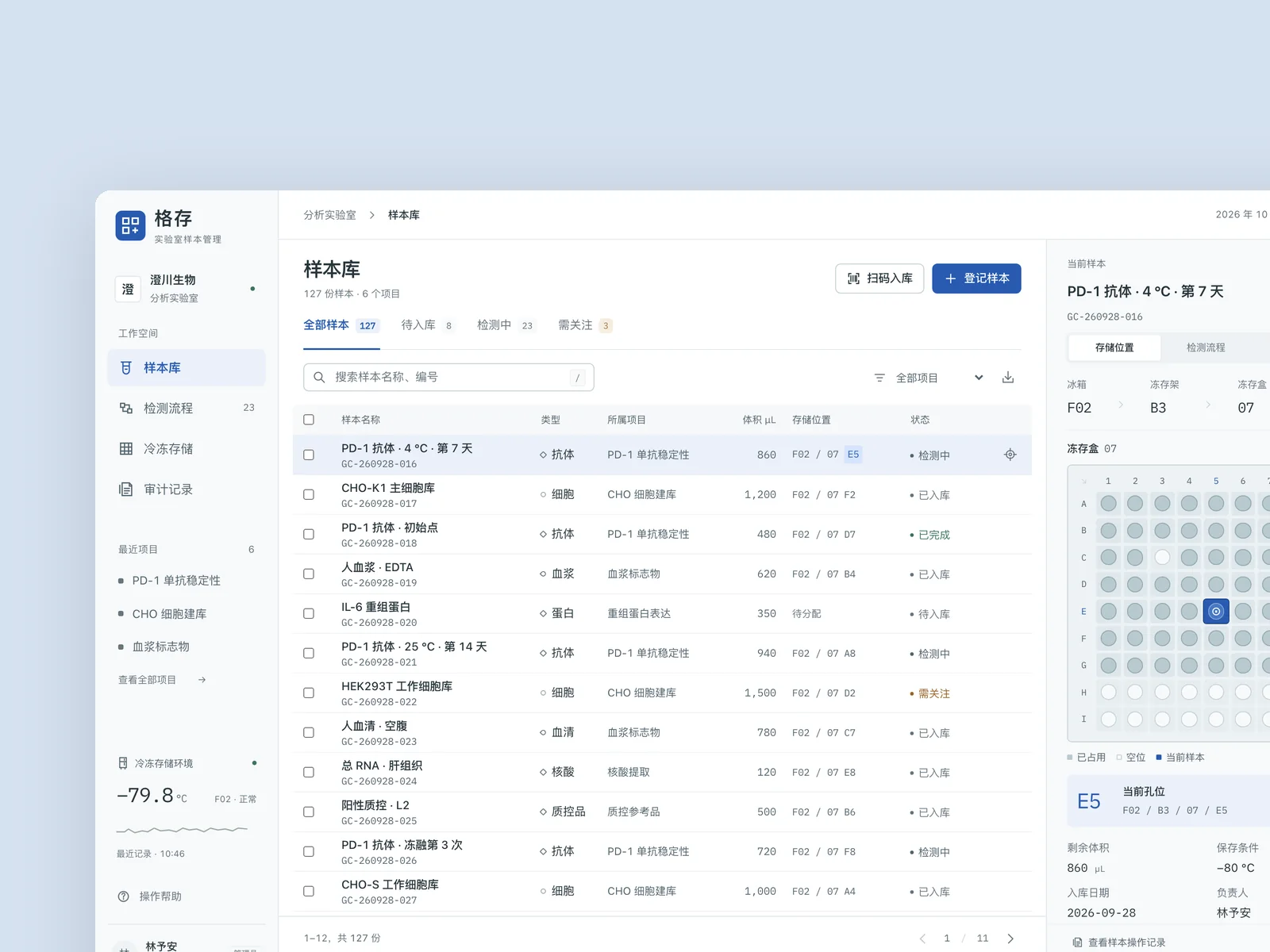
GridStore
Laboratory sample management system
A sample management system for a biomedical laboratory: sample intake, freezer storage locations, testing workflows, and audit records. Build the main interface.
Inspect work & prompt →Oil UI Pro: 10 workspace archetypes & full-page continuity checks
Oil UI Pro equips your agent with 10 specialized dashboard and tool layouts—covering incident consoles, billing ledgers, multi-panel editors, timelines and node graphs—while enforcing visual continuity across tables, drawers and popovers.
npx github:oil-oil/oil-cli install oil-ui-proCommon questions
How do I stop my agent from putting four giant KPI cards at the top of every admin page?
Specify in your prompt that the primary viewport must open directly into the working object (the filterable table, canvas or schedule) and that any summary metrics should live in a compact inline status strip above the list.
When should a desktop tool use a locked 1440×900 viewport versus full-page scrolling?
Tools with persistent sidebars, timelines or canvases—like Cut (video editor), Loom (whiteboard), Sonar (messaging) and Nightwatch (incident console)—work best as locked-viewport workspaces with independent panel scrolling. Editorial reports can scroll naturally.
How do I fit 15+ data fields into a console without horizontal clipping?
Split fields into triage columns (5–6 columns in the main table) and inspection fields (raw JSON payloads, full timelines and secondary metadata inside a slide-over detail panel).
Can I test the different states of desktop works in the Oil UI gallery?
Yes. Open works like Nightwatch, Vesper or Sonar to click through filters and threads directly, or use the state switcher buttons in the viewer bar to jump between预设 states.