
OpenAI Codex UI Design Guide: Building Websites, Consoles & Apps with Oil UI
OpenAI Codex and GPT models excel at stateful logic, synchronized controls and data-dense interfaces. Paired with Oil UI Skill, Codex channels that engineering strength into disciplined typography, clear hierarchy and tactile interactions—from a live type tester with instant license pricing to an incident topology console and a 390×844 surf forecast app.
Key takeaways
- Install Oil UI with npx skills add oil-oil/oil-ui so Codex establishes visual hierarchy and color restraint before writing component code.
- Play to Codex’s strength in working state: specify how controls update one another (such as dragging a timeline to align logs, traces and deployment markers).
- Use the same product brief to explore distinct visual directions, just like the nine Orvo landing pages or the Atelier Volders and Fonderie Mercier series in the gallery.
- Verify every state at 1440×900 or 390×844 using browser screenshots and blind subagent critiques to eliminate border clutter and truncated labels.
npx skills add oil-oil/oil-uiSelect your Codex / OpenAI agent directory in the interactive installer.
Where Codex Shines in UI—and Where It Needs Guardrails
More than eighty works in the Oil UI gallery were built with GPT and Codex models (GPT 6.1 Sol, GPT 5.4, GPT 6 Luna and GPT 6 Astra). Inspecting those live pages shows what Codex handles especially well: interfaces where the design depends on working calculations and linked state. In Fieldwork Type, typing into the specimen tester updates weight, width and cart licensing on the fly; in Nightwatch, dragging the time window aligns service topology, deployment markers and error logs; in Vesper, filtering invoices opens webhook payloads and retry actions.
Left to its own defaults, however, Codex can turn complex tools into noisy engineer debug panels—wrapping every field in a box, stacking status pills in a row and giving every table column equal visual weight. Oil UI gives Codex the hierarchy and subtraction rules to keep dense screens calm.
| Work & model | Form | Focal interaction | Viewport & states |
|---|---|---|---|
| Fieldwork Type (GPT 6.1 Sol) | Independent type foundry web | Live type tester linked to desktop/web/app license pricing | 1440×900 down to 390px; hero, expanded tester and license picker |
| Nightwatch (GPT 6.1 Sol) | Incident response console | Dragging the time range aligns topology paths, deployments and logs | 1440×900; healthy, active incident, peak investigation and release view |
| Vesper (GPT 5.4) | API usage billing console | Filtering customers by threshold and inspecting failed invoice timelines | 1440×900; overview workspace, exception detail drawer and command palette |
| Tide (GPT 6.1 Sol) | Surf & tide forecast app | Scrubbing the timeline updates swell height, wind and tide curve together | 390×844 mobile; interactive index.html plus 3-screen screens.html |
Running the Direction → State → Screenshot Loop in Codex
Instead of asking Codex to generate an entire multi-screen application in one unverified pass, break the work into clear checkpoints.
Install Oil UI and pass a task-first brief
Install the skill with npx skills add oil-oil/oil-ui, then describe the user, core objects, required states and viewport dimensions.
npx skills add oil-oil/oil-uiCompare directions on a single board before committing
Have Codex build a comparison board with 3 to 4 distinct directions using real product copy. Pick one direction and do not splice leftover widgets from rejected options into the winner.
Expose key states via URL parameters or a multi-screen board
Follow the gallery pattern (?state=incident or screens.html) so every critical state can be opened directly in a headless browser and captured deterministically.
Subtract visual noise after inspecting 100% and 200% captures
Review the rendered screenshots to strip redundant borders, fix awkward line wraps and verify that the primary action stands out at a glance.
A High-Signal Codex Prompt Template
Codex produces much stronger interfaces when you specify how user actions affect the screen. You can adapt this structure directly for your own product:
Use Oil UI to design and implement [product name & category, e.g., an API usage billing and customer invoice console for developer tool teams] at a 1440×900 desktop viewport.
- Core task: Manage subscription plans and live usage, review amounts due and invoice exceptions for the current cycle, filter customers by status and usage threshold, and inspect line items, payment timelines and webhook payloads.
- Linked interactions: Updating filters refreshes the customer list and usage trend together; opening an exception invoice exposes payment retry, quota adjustment and export actions.
- States to deliver: 1) Everyday workspace with live filtering, 2) Exception invoice detail view with recovery actions, and 3) Quick command palette. Verify all three states with real browser screenshots.
Adapted from the brief used to produce Vesper in the Oil UI gallery.
Working gallery examples & prompts
Open the live demos at 1440px or 390px to inspect how the model and prompt shaped the final interface.
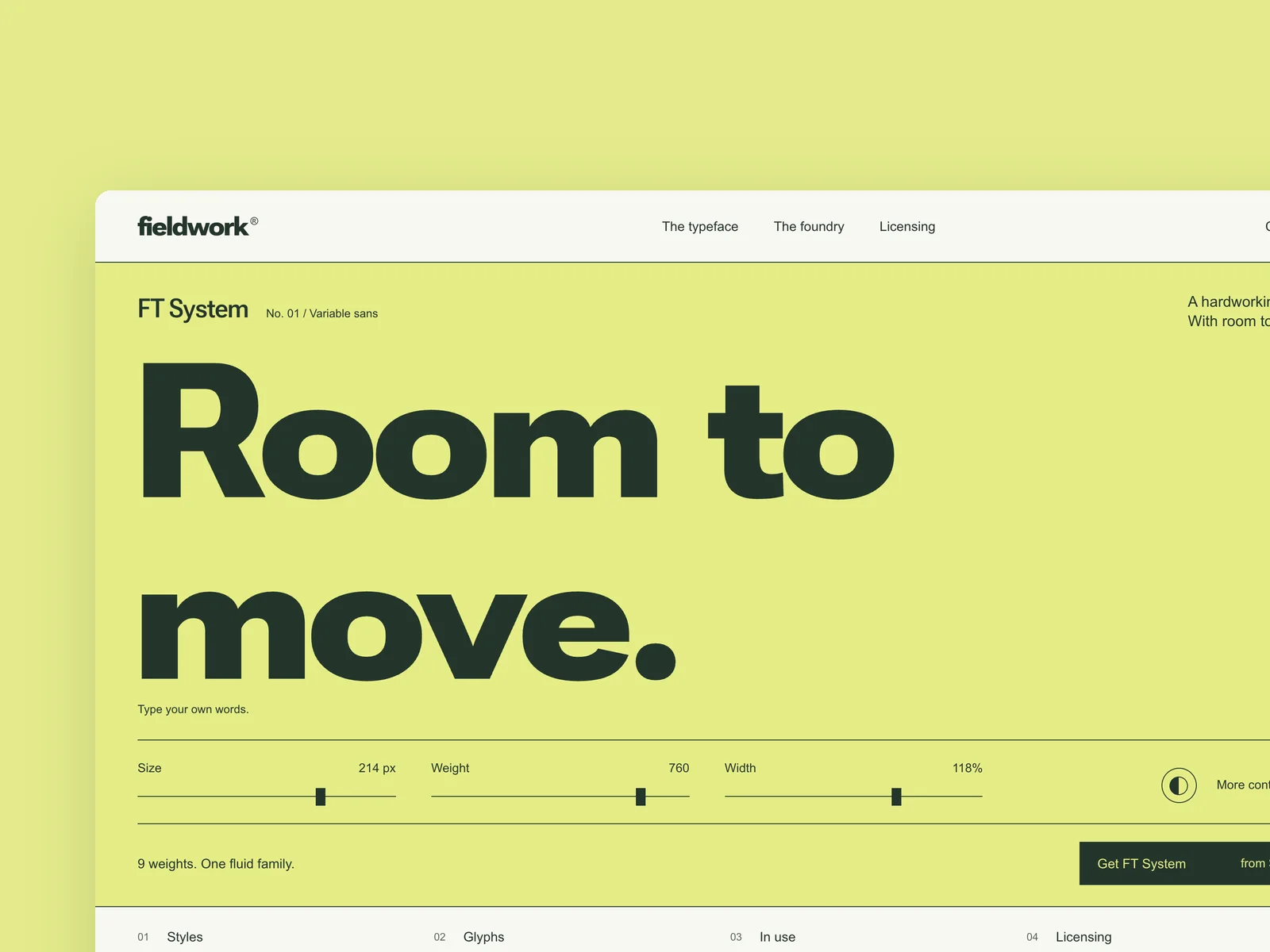
Fieldwork Type
Independent type foundry
The website of an independent type foundry (from 1440×900, responsive down to 390 wide). The first screen features a flagship typeface: visitors can type their own text and adjust size, weight and width. Further down: the family's weight chart, the character set, in-use examples, and licenses chosen by use (desktop, web, app) that can be added to the cart. The type tester and the license picker are the heart of this piece: the setting changes as you type, and the license price updates with every option. Design the first screen, the tester panel expanded, and license selection.
Inspect work & prompt →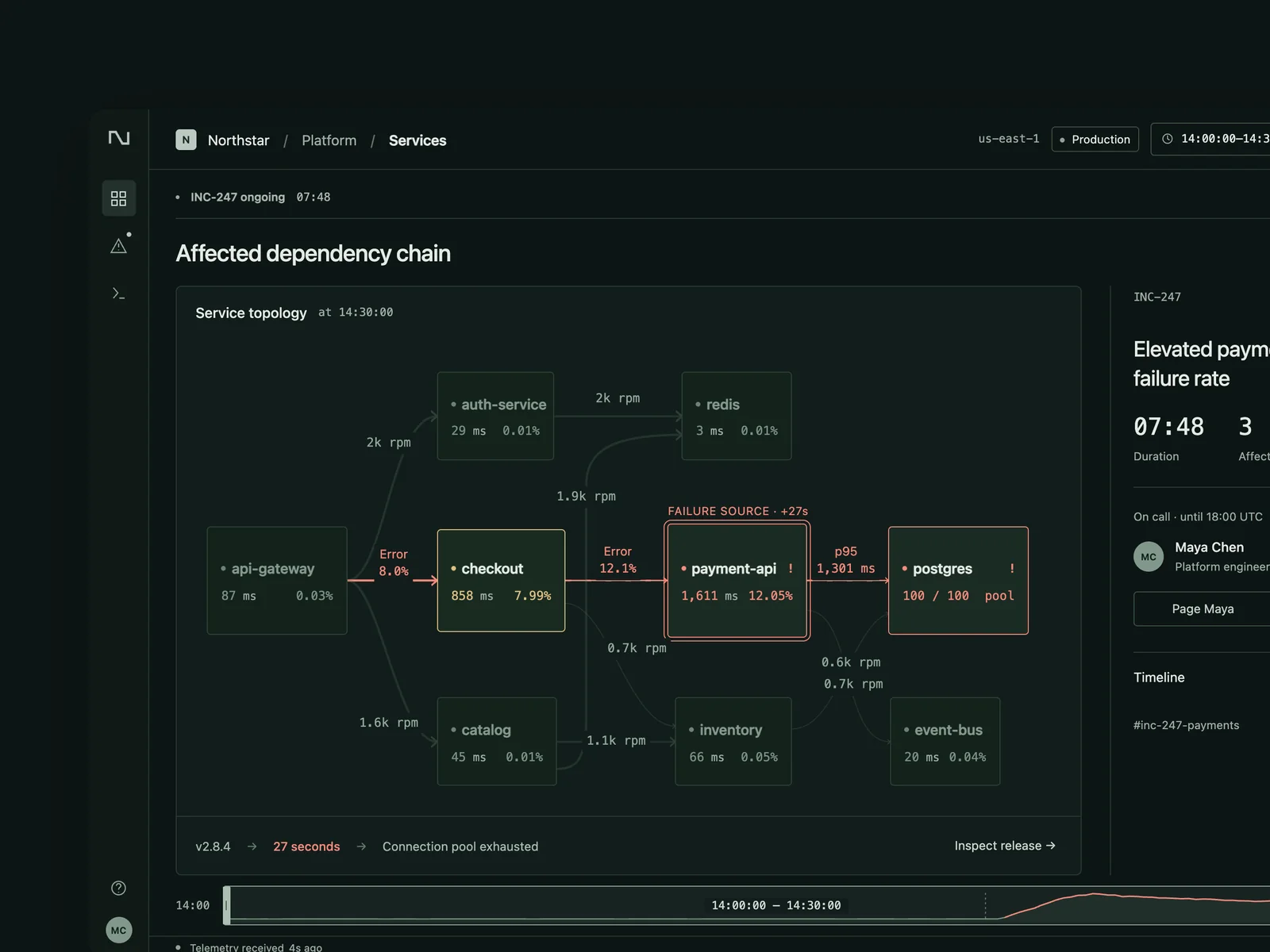
Nightwatch
Operations monitoring and incident response
A monitoring and on-call tool for a medium-sized platform team (1440×900), with an English interface: service topology, latency, error-rate and traffic charts, recent deployments, logs, and traces; during an incident, show alerts, the current on-call person, and an incident timeline. An incident unfolding is the core: the failing service and affected downstream services should be obvious in the topology. Dragging the time range should align charts, deployment markers, and logs so users can see which deployment caused the problem. Design three states: a healthy overview; an incident in progress with an alert and the affected path highlighted in the topology; and logs and traces opened at the error peak to identify the deployment responsible.
Inspect work & prompt →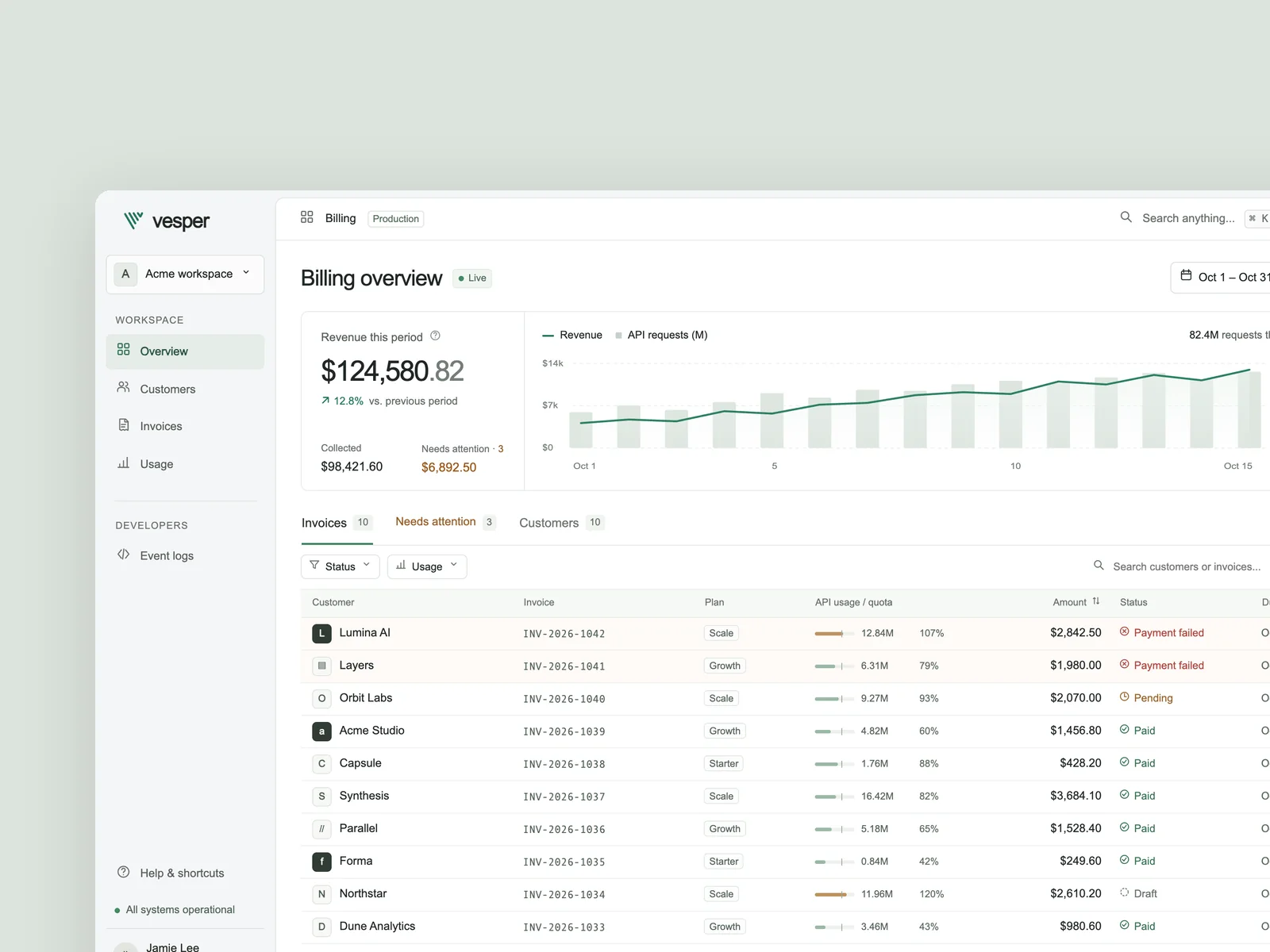
Vesper
API usage billing console
Design an API usage billing and customer invoice console for AI and developer tool teams, with an English interface at a desktop viewport of 1440×900. Users can manage subscription plans and live API usage, review amounts due and invoice exceptions for the current cycle, filter customers or invoices by status and usage threshold, and open a record to inspect line items, payment and Webhook timelines, and event payloads. Include payment retries, quota adjustments, and invoice exports. Implement three key states: the everyday workspace with revenue and usage trends, customer or invoice lists, and live filtering; an exception invoice detail view with a usage breakdown, status timeline, and recovery actions; and a quick command palette. Deliver an offline-ready `index.html` and capture `shots/desktop.png`, `shots/state-1.png`, and `shots/state-2.png` at 1440×900, DPR=2.
Inspect work & prompt →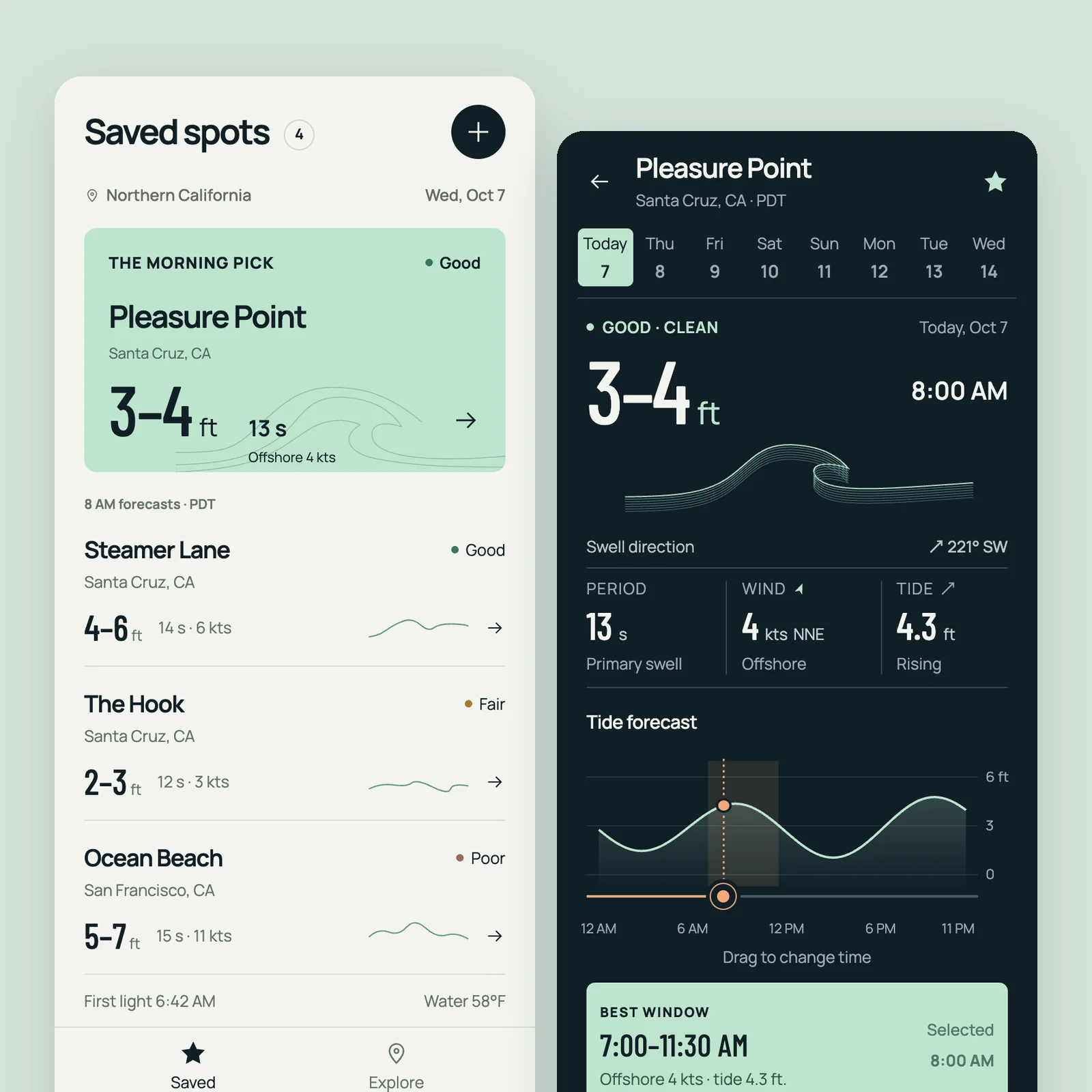
Tide
Surf and tide forecast app
A surf and tide forecast app for surfers (390×844): a list of saved surf spots, and for each spot today's and the next seven days' wave height, period, wind direction and speed, a tide curve, and a suggestion for the best time to go. Tides and conditions change over time, which makes this a data-visualization piece: drag the timeline and the waves, wind and tide update together. Design the spot list, a single spot's detail, and dragging the timeline to a specific moment. Deliver `index.html` and a three-screen side-by-side `screens.html`.
Inspect work & prompt →Using Oil UI Pro with OpenAI Codex
Step up to Oil UI Pro when you want Codex to use the 10 specialized workspace archetypes (list-detail, canvas-inspector, timeline, node graph and more), renovate an existing production codebase, or run multi-round blind reviews targeting 9/10 quality.
npx github:oil-oil/oil-cli install oil-ui-proCommon questions
Why does the gallery include multiple Codex works for the same product, such as nine Orvo pages?
Those series show how the exact same brief can yield genuinely different design directions. All nine Orvo pages share the same product facts and $0 / $24.99 / $34.99 pricing, yet Launch Garden, Tandem, Coastal Workshop and Open Creative Studio each take a distinct editorial and spatial approach.
How do I keep Codex from turning a mobile app into a squished desktop webpage?
Specify a 390×844 viewport and ask for both an interactive index.html and a side-by-side screens.html showing three to five key screens. Oil UI guides Codex to design around thumb reach, focused single-screen tasks and native mobile transitions.
How does Oil UI handle dark mode in Codex without making everything neon?
Oil UI matches surface brightness to the physical context—using dark surfaces for night driving (Yantu) or 24/7 on-call rooms (Nightwatch) while reserving high-chroma accents strictly for active routes, warnings and focal controls.
If I install Oil UI Pro, should I remove the open-source skill?
Yes. Oil UI Pro includes the entire open-source method plus advanced workflows. Keeping only Pro installed prevents duplicate skill triggers.