
Claude Code UI Design Guide: Oil UI Skill Setup, Prompts & Visual Review
Claude Code is strong at reading repository structure, breaking down multi-step work and spawning subagents. Without design guidance, however, prompts like "build a modern landing page" still tend to produce purple gradients, nested cards and invented KPI badges. Installing Oil UI gives Claude Code a structured design workflow: research the category, compare distinct directions side by side, and verify the rendered page at real viewports.
Key takeaways
- Run npx skills add oil-oil/oil-ui to install the free open-source skill in Claude Code without locking your project into a specific component library.
- Lead your prompt with the product, audience, core user task, real content and target viewport (such as 1440×900 or 390×844) instead of vague style adjectives.
- For new pages or redesigns, ask Claude Code to generate a side-by-side HTML comparison board with 3 to 4 distinct directions before writing production states.
- Use Claude Code subagents for context-free blind visual review at 100% and 200% zoom so spacing, contrast and hierarchy issues get fixed before handoff.
npx skills add oil-oil/oil-uiOr send this directly to Claude Code: "Install this skill for me: run npx skills add oil-oil/oil-ui".
Why Claude Code Benefits from a Dedicated Design Skill
When you ask Claude Code for a "clean, modern SaaS interface" with no further method, the model falls back on statistical averages from its training data: a centered headline with a pill badge on top, three equal-width cards below, and decorative sparklines or "+24%" counters in the corner. The code compiles, but the interface looks interchangeable with every other AI demo.
Oil UI changes the sequence of work. Instead of jumping straight from prompt to final markup, Claude Code studies what makes the product category legible, puts distinct visual directions on a single comparison board, and inspects the live browser rendering before calling the job done.
| Stage | One-shot prompt in Claude Code | Claude Code + Oil UI workflow |
|---|---|---|
| Starting point | Defaults to generic SaaS card grids and safe palettes | Starts from product category, user task and real content |
| Direction choice | Single output; requires re-prompting from scratch if off | Built-in side-by-side comparison page at 1440px or 390px |
| Data & copy | Often invents fake percentages and filler badges | Builds hierarchy around real domain fields and removes clutter |
| Quality check | Stops as soon as the code compiles | Spawns a blind subagent to critique full-page and 200% crops |
Setup in Three Steps
You can install Oil UI globally for your user account or locally inside a repository so the whole team shares the same workflow.
Run the skill installer and select Claude Code
Execute the command below in your terminal and follow the interactive prompt to pick Claude Code and your preferred installation scope.
npx skills add oil-oil/oil-uiMake sure a local browser can render and capture pages
Visual review requires real screenshots rather than source-code guesses. Ensure Playwright or your local browser automation can open the dev server at 1440×900 (desktop) and 390×844 (mobile).
Upgrade to Oil UI Pro when you need full workflow coverage
If you have purchased Oil UI Pro, install it through the CLI. When Pro is installed, you do not need the open-source skill installed alongside it.
npx github:oil-oil/oil-cli install oil-ui-pro
How to Write High-Signal UI Prompts for Claude Code
Look at the Claude-built pieces in the gallery—such as Margins (tablet e-reader by Claude Opus 5.5), Echo (voice assistant by Claude Opus 5.5), Pickup (ride-hailing app by Claude Sonnet 5.5) and Pinch Checkout (checkout module by Claude Sonnet 5.5). Each prompt states who the user is, which interaction carries the weight of the piece, and which states must work.
- State the user and task in plain language
- Instead of asking for a "sleek mobility app," specify "a 390×844 ride-hailing flow covering pickup pin confirmation, live driver arrival and destination changes mid-ride."
- Name the focal interaction
- Tell Claude Code which control or transition matters most: the live price calculation when a promo code is applied, the annotation drawer in a long-form reader, or the waveform response in a voice assistant.
- Define viewports and concrete states
- List the exact viewport dimensions and the three or four states you want rendered so the agent can verify each state in a real browser.
Use Oil UI to design the interface for [product type, e.g., an independent bookstore checkout module].
- Audience & core task: [e.g., readers reviewing cart items, switching between local pickup and shipping, applying a discount code and completing payment]
- Focal interaction & states: Focus on [primary interaction]. Cover [State 1: default form], [State 2: live shipping and discount recalculation], and [State 3: inline card validation error and recovery].
- Constraints: Keep our existing tech stack. Target 1440×900 on desktop and responsive down to 390px wide.
Propose distinct design directions first so we can compare them before refining the chosen direction.
Replace the bracketed fields with your real domain details and paste into Claude Code.
Running Blind Subagent Reviews on Real Screenshots
An agent that just wrote 600 lines of CSS rarely notices when two labels overlap or when secondary text lacks contrast. Oil UI solves this by having the main agent capture screenshots of the live page and hand them to a fresh Claude Code subagent with zero knowledge of the implementation.
The reviewer inspects full-page captures at 100%, 200% crops of dense controls, and blurred block-structure images that expose top-heavy or monotonous layouts. The main agent fixes the reported defects before presenting the result to you.
Working gallery examples & prompts
Open the live demos at 1440px or 390px to inspect how the model and prompt shaped the final interface.
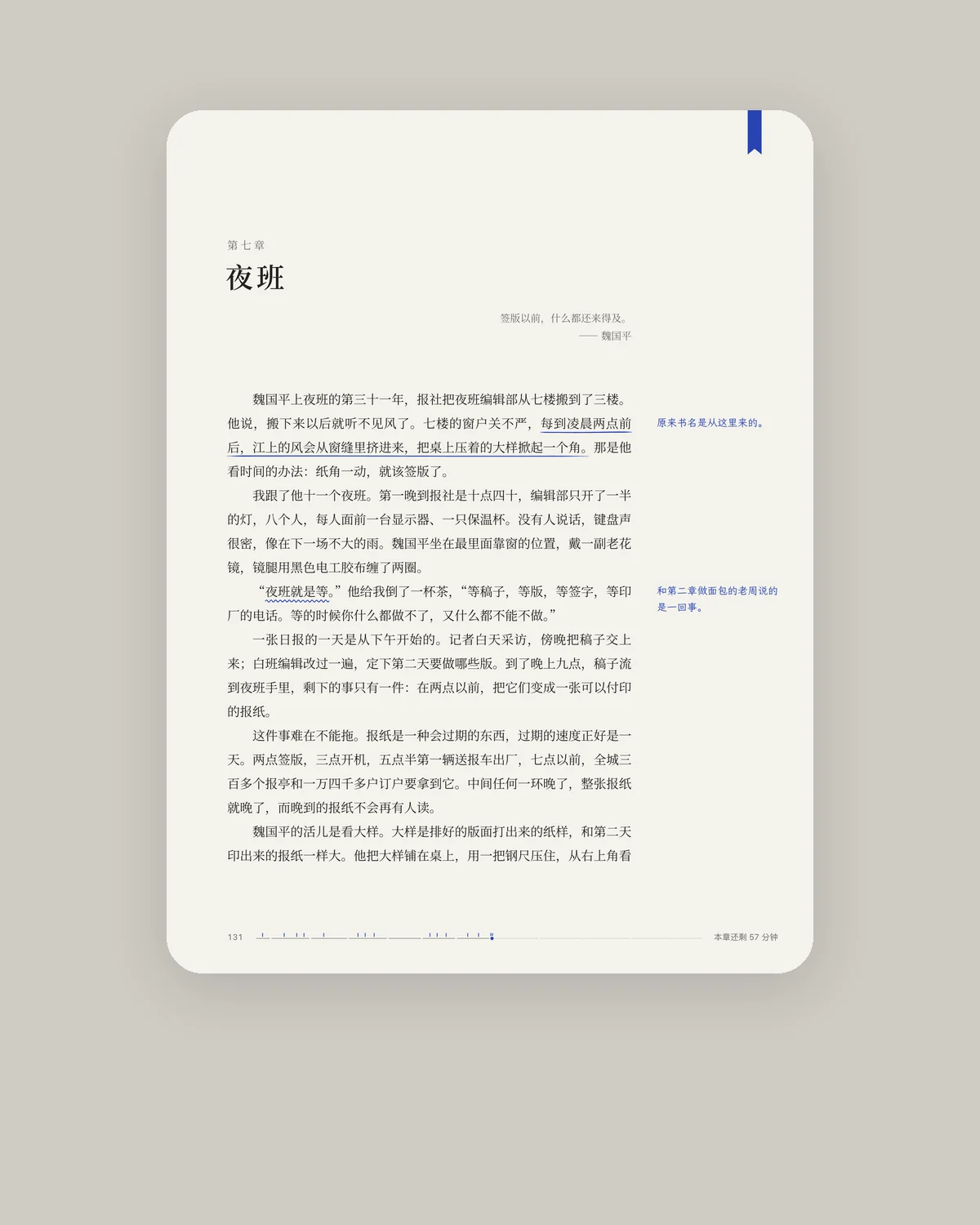
Margins
Tablet e-reader
The tablet reading interface of a long-form reading app, designed in portrait at 1024×1366 and placed on a presentation canvas: body text, highlighting, annotations, a table of contents, and reading progress. Focus on Chinese long-form typography: carefully handle font size, line height, paragraph spacing, and punctuation spacing so ten minutes of reading feels comfortable. Users can write a short annotation after highlighting text. Capture three states: reading, highlighting and writing an annotation, and an open table of contents.
Inspect work & prompt →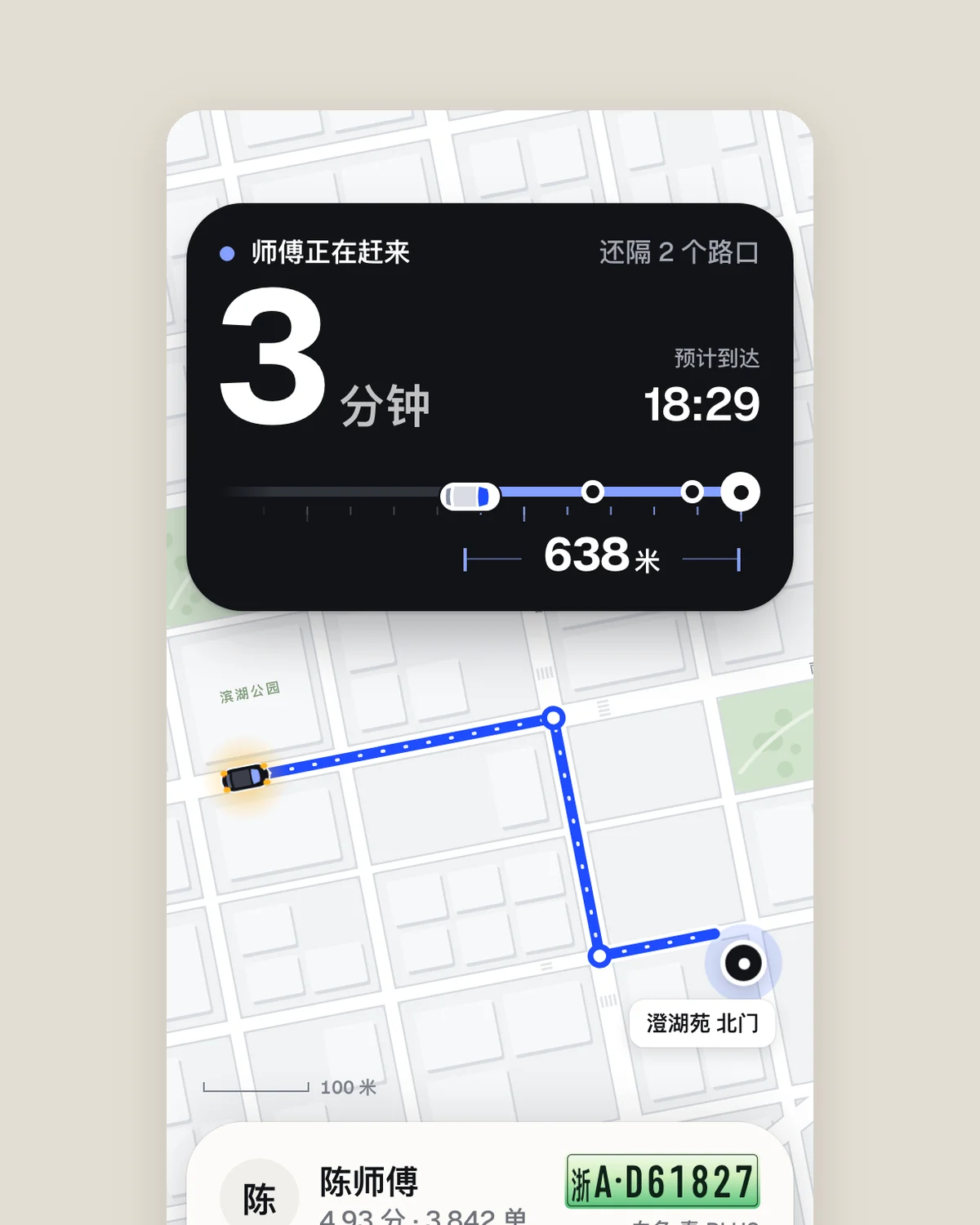
Pickup
Ride-hailing app
The screen after booking a ride in a ride-hailing app (390×844): an approaching car on a map, driver and vehicle details, estimated arrival, and trip progress after pickup. Draw the road network and route in code instead of using real map screenshots. Waiting for the car is the most anxious moment, so make its distance immediately apparent. Capture three states: waiting, car arrived, and trip in progress. Deliver `index.html` and `screens.html` with the three screens side by side.
Inspect work & prompt →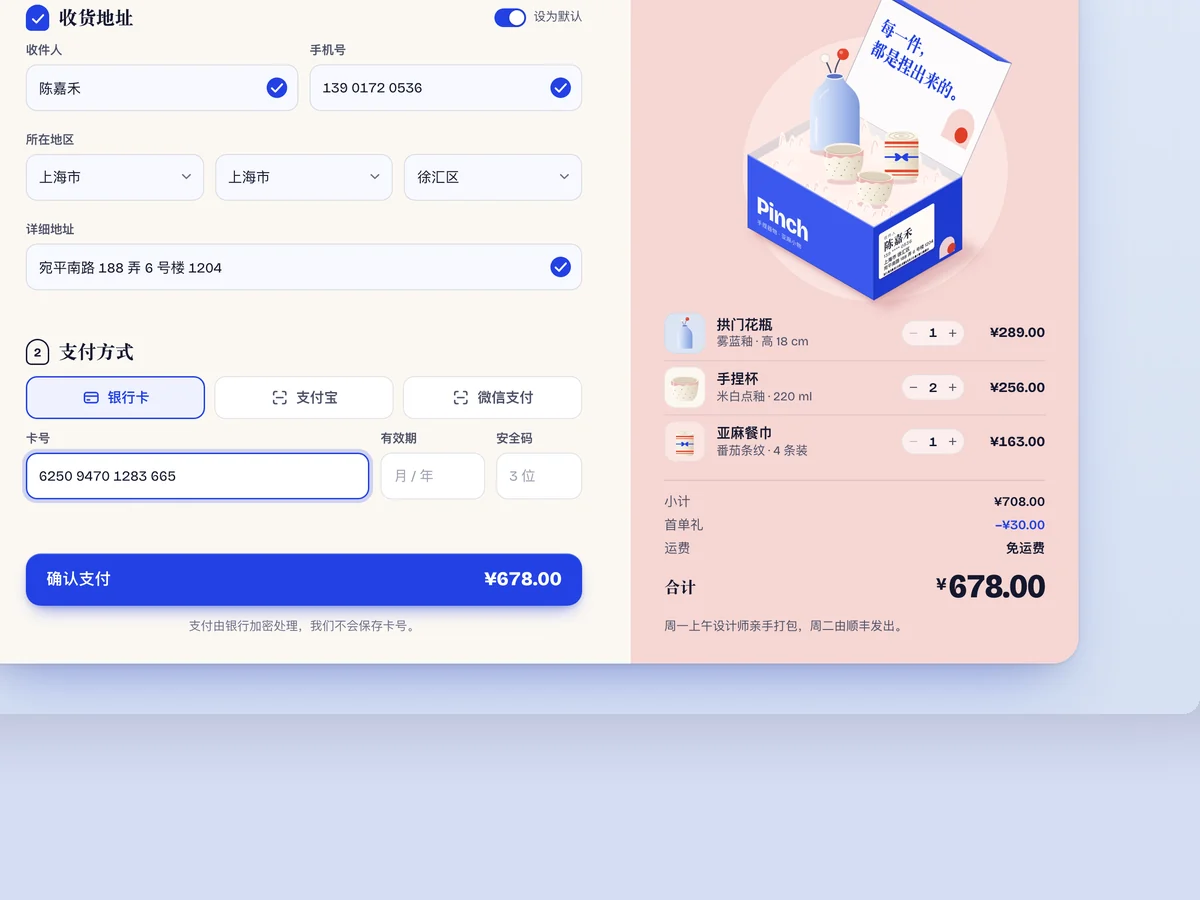
Pinch Checkout
E-commerce checkout module
A checkout module for an independent designer brand's online store (desktop 1440×900, checkout panel centered): shopping list, shipping address, payment method, and order confirmation. Each step should flow smoothly, with clear states for every input: being filled in, invalid, and completed. Order completion should feel joyful, beyond merely showing a checkmark. Capture three states: filling in the form, a validation error, and a successful order.
Inspect work & prompt →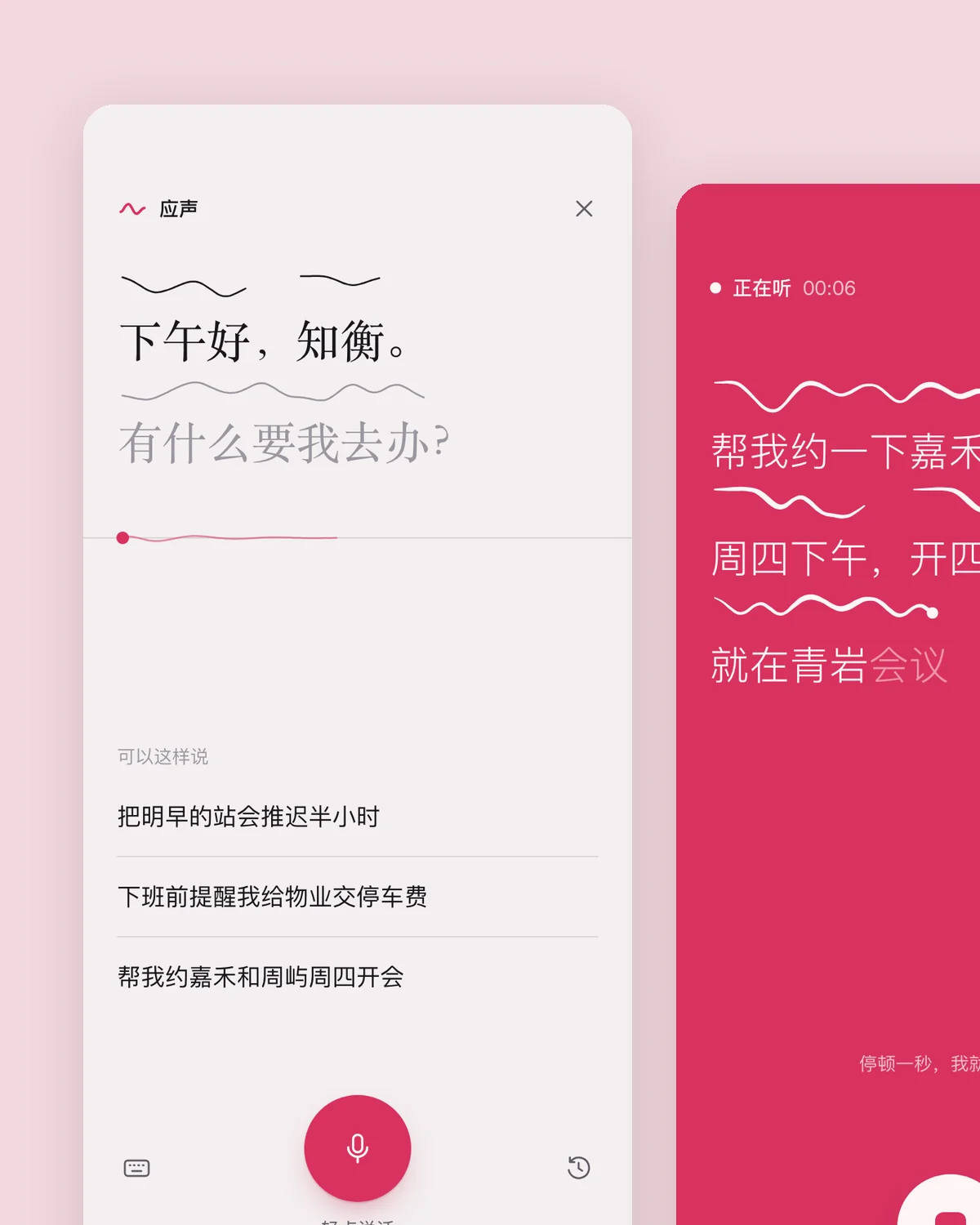
Echo
AI voice assistant
A full-screen mobile interface for an AI voice assistant (390×844), focused on visualizing sound. Waiting for speech, listening, thinking, and answering should each have a distinct form. When answering, show a result card below, such as a meeting it has booked for you, rather than only a glowing orb. A purple-blue glowing orb is the most common default; avoid that approach. Capture all four states. Deliver `index.html` and `screens.html` showing the states side by side.
Inspect work & prompt →When to move from the free skill to Oil UI Pro
The free open-source skill covers category research, side-by-side direction boards, anti-AI-slop checks and screenshot recreation. Step up to Oil UI Pro when you use Claude Code to renovate existing production apps, design dense desktop workspaces, or run up to three rounds of blind subagent review with click-counted task walkthroughs.
npx github:oil-oil/oil-cli install oil-ui-proCommon questions
Does Oil UI lock Claude Code into React, Tailwind or a specific UI library?
No. Oil UI provides design methods, layout judgment and visual verification steps. Claude Code writes markup and styles within your existing stack, whether that is Next.js, Vue, Svelte, plain HTML/CSS or an internal design system.
How do Claude Opus and Claude Sonnet compare when using Oil UI?
Opus tends to make stronger decisions on typographic scale, pacing and editorial hierarchy across full pages. Sonnet is faster and works well for focused modules, state completion and extending an established direction.
Can I give Claude Code a reference screenshot to match or adapt?
Yes. Pass the image path and state whether you want a faithful pixel-diff recreation or want to borrow its typographic mood and spacing for your own product content. Oil UI includes dedicated workflows for both.
How do I know Claude Code is actively applying Oil UI?
Include "Use Oil UI" in your prompt. Instead of dumping unstyled boilerplate immediately, Claude Code will frame the user task, propose distinct visual directions or open a comparison board, and inspect rendered screenshots before finishing.